





Get Requestly
If you are moving away from Postman, you should not have to rebuild your entire API workflow. Most teams already have collections, environments, and variables in Postman that represent hours of setup and testing.
The good news is that you can migrate your Postman collections and environment files directly into Requestly. Requestly’s API Client supports importing these files so your existing API requests, variables, and configurations remain intact.
This guide explains how to export your data from Postman and import it into Requestly step by step, making the transition quick and smooth.
Export all the workspace data from Postman
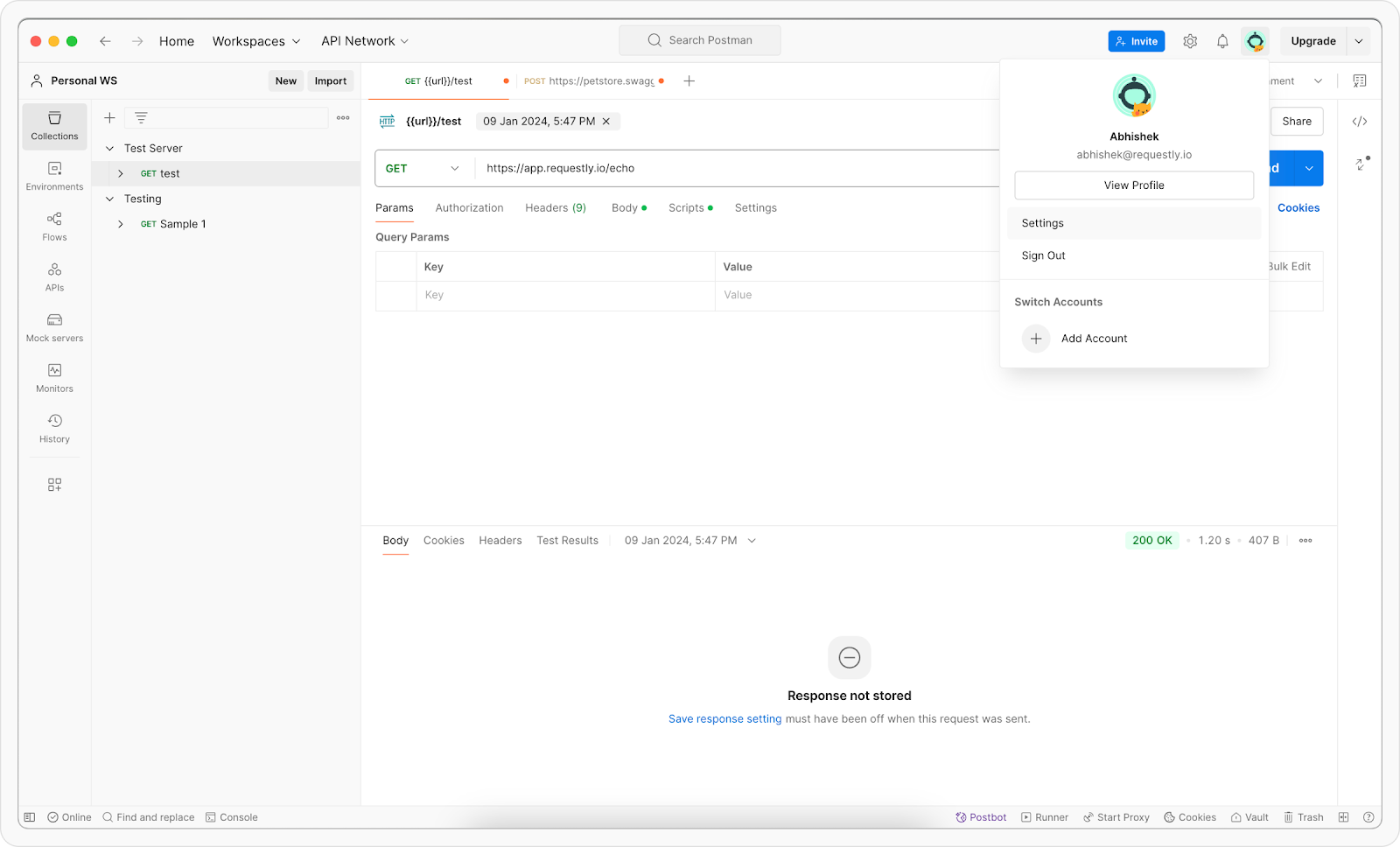
Step 1: Click your profile icon in the top-right corner of Postman and select Settings.
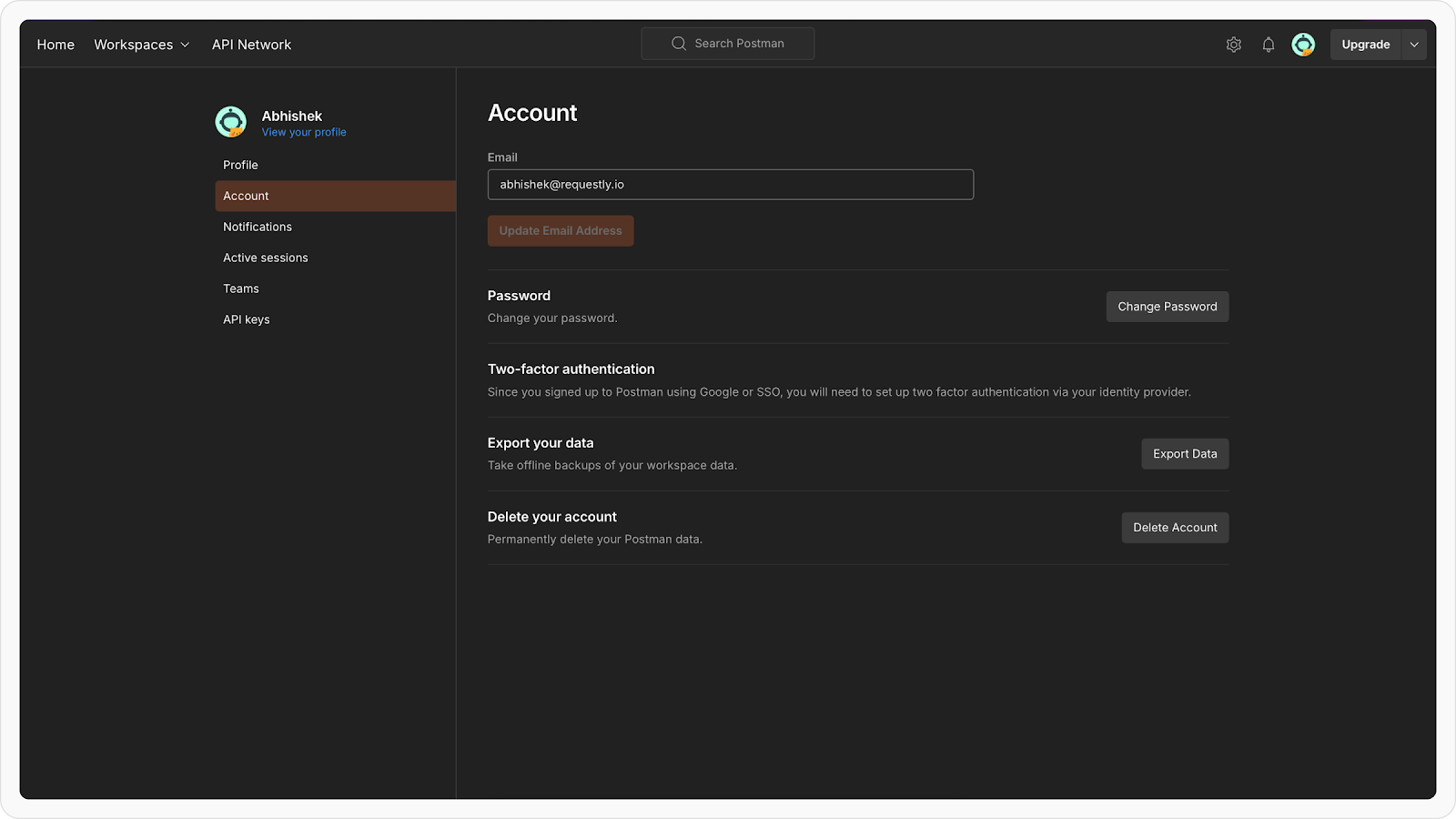
Step 2: Navigate to the Account tab and click Export Data. It will redirect you to Export data page. Click on Export data button.
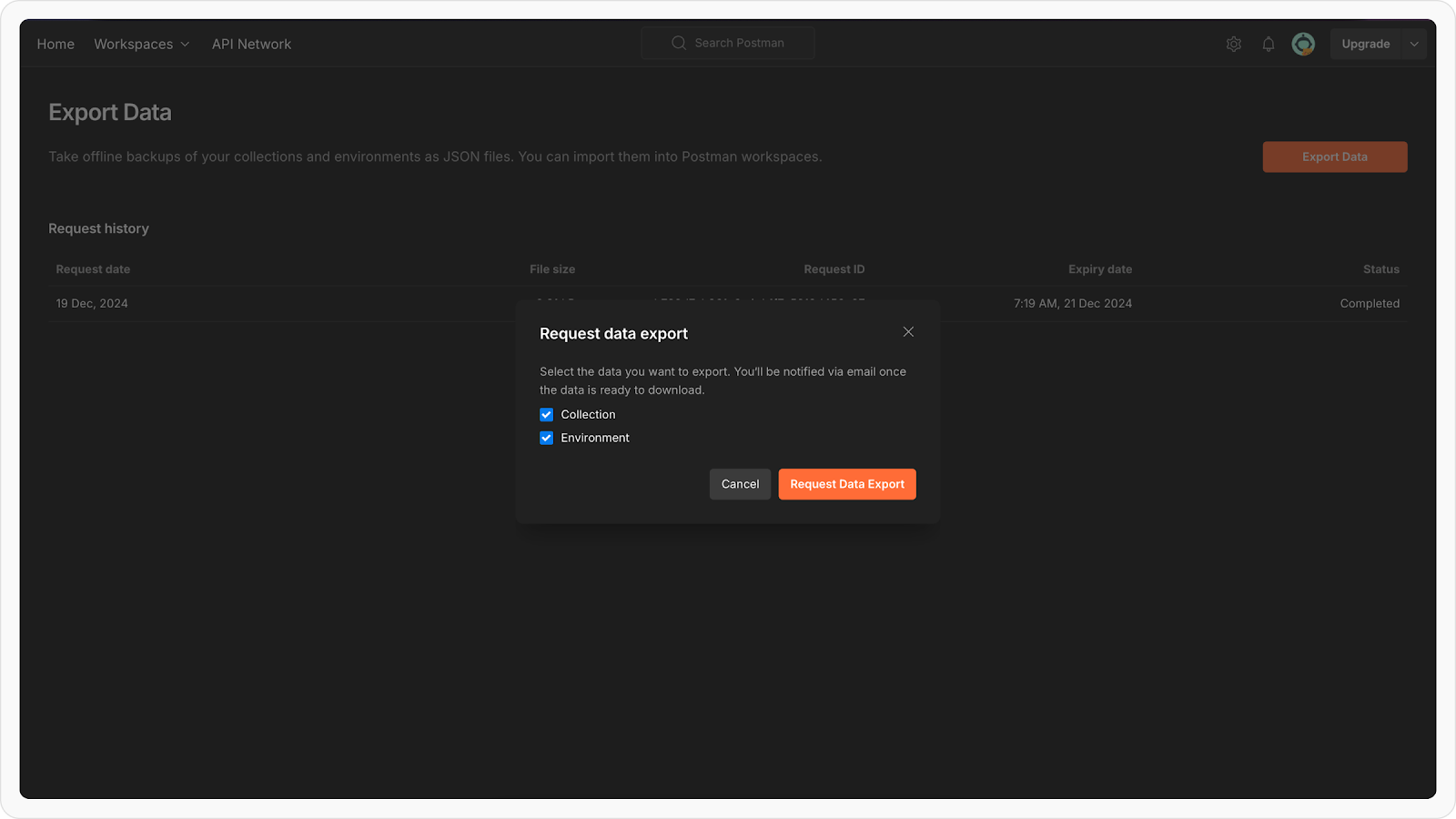
Step 3: Select the data to export (collections, environments, or both) and click Request Data Export.
Step 4: Check your registered email for exported data, download the ZIP file and extract its contents.
Note: Global variables are not automatically exported using this method.
To use them in Requestly, you need to manually export global variables from Postman and import it into Requestly.
Importing into Requestly
Step 1: In Requestly, navigate to the API Client section.
Step 2: Click the Import button located in the sidebar header and choose Postman from the import options.
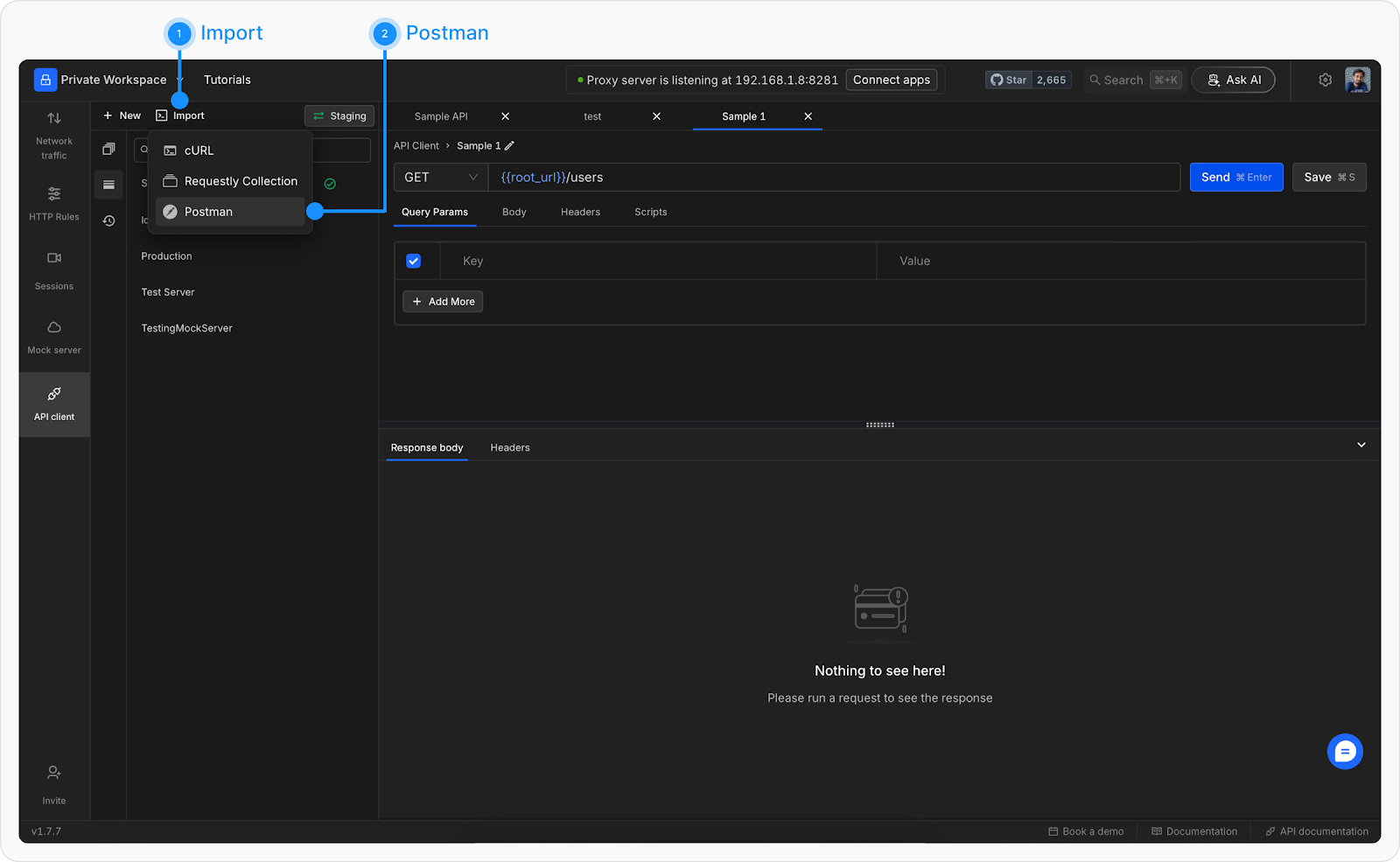
Step 3: In the upload modal, select and upload the exported Postman collection and environment files(Multiple files can be imported at once).
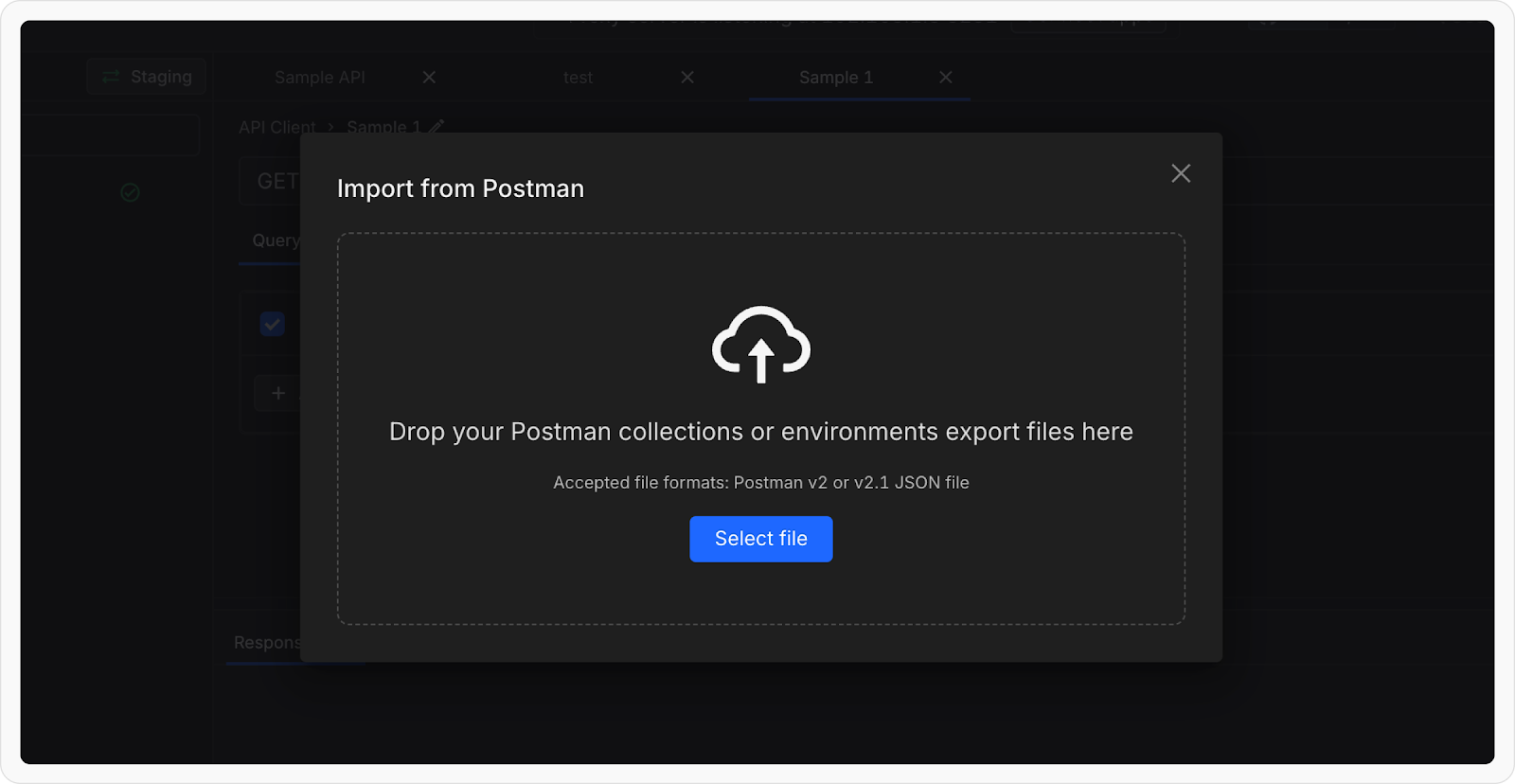
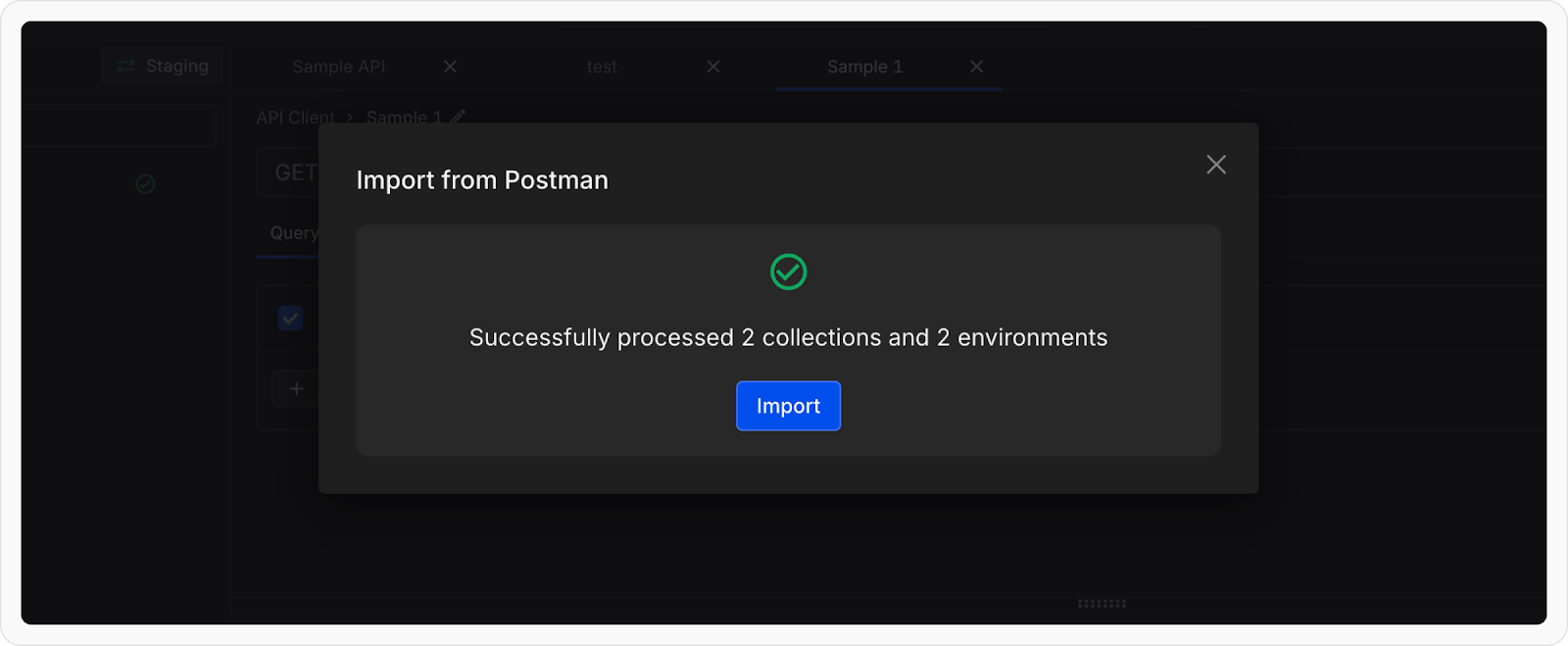
Step 4: Once the files are processed, click Import to finalize the migration.
Exporting individual Collections from Postman
Step 1: Open Postman and navigate to the Collections tab in the left sidebar to view your collections.
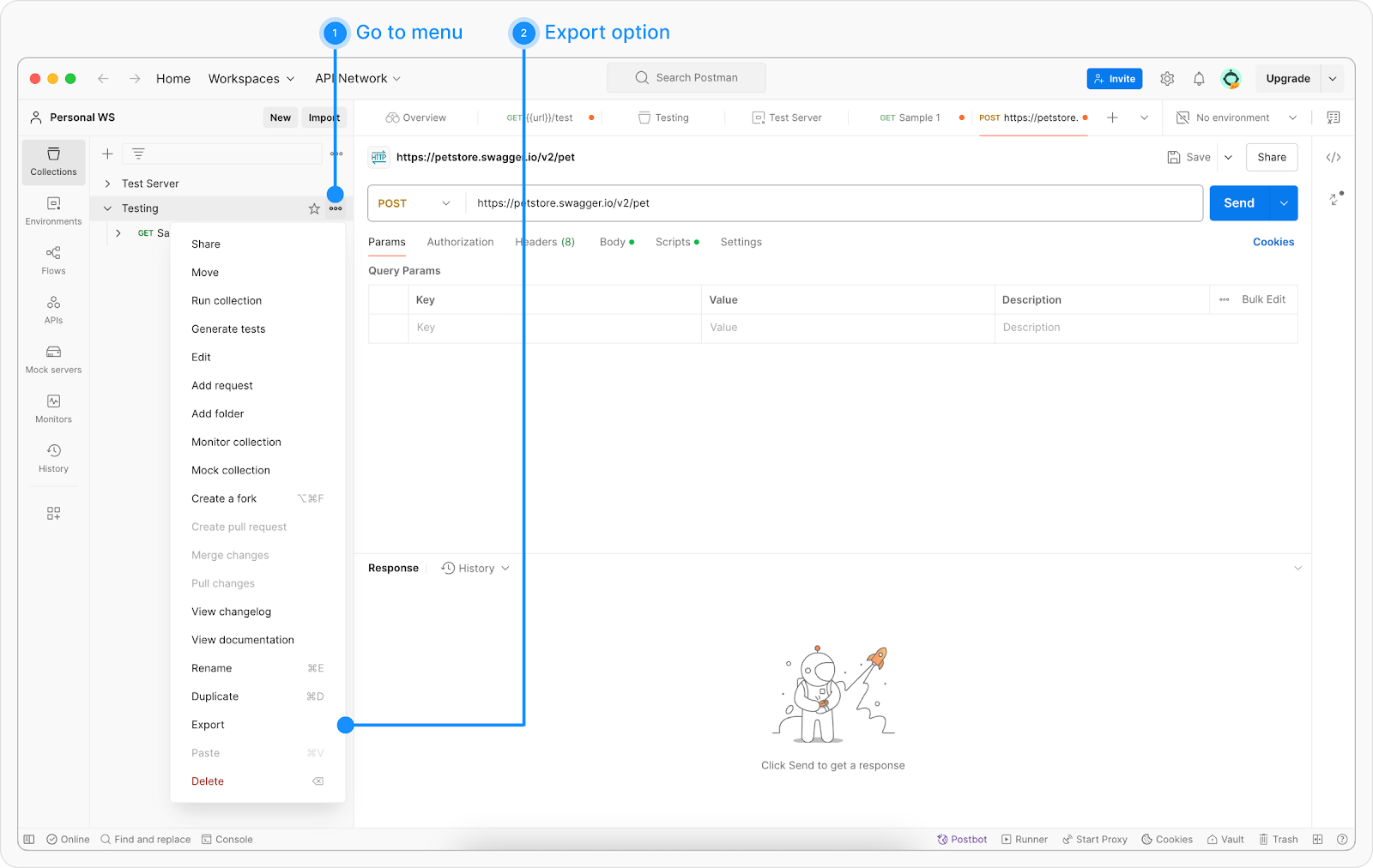
Step 2: Click the ellipsis (…) next to the collection you wish to export and select Export from the dropdown menu.
Step 3: In the export dialog, select either Collection v2 or Collection v2.1(Requestly supports both) as the export format. Click Export and save the file.
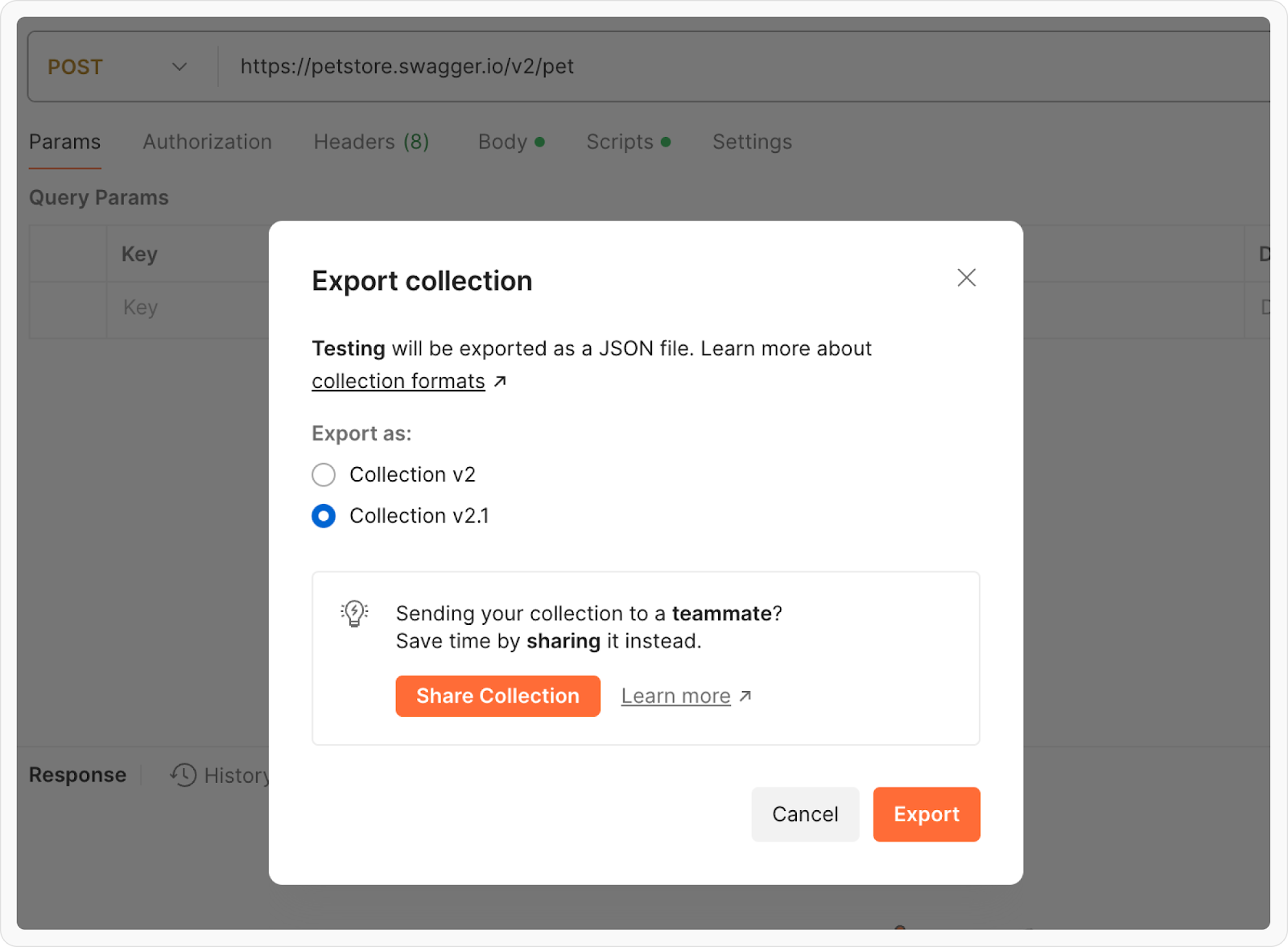
Step 4: Import using the same steps as explained in Import into Requestly section above.
Exporting individual Environments from Postman
Step 1: Open Postman and go to the Environments tab in the left sidebar to view your environments.
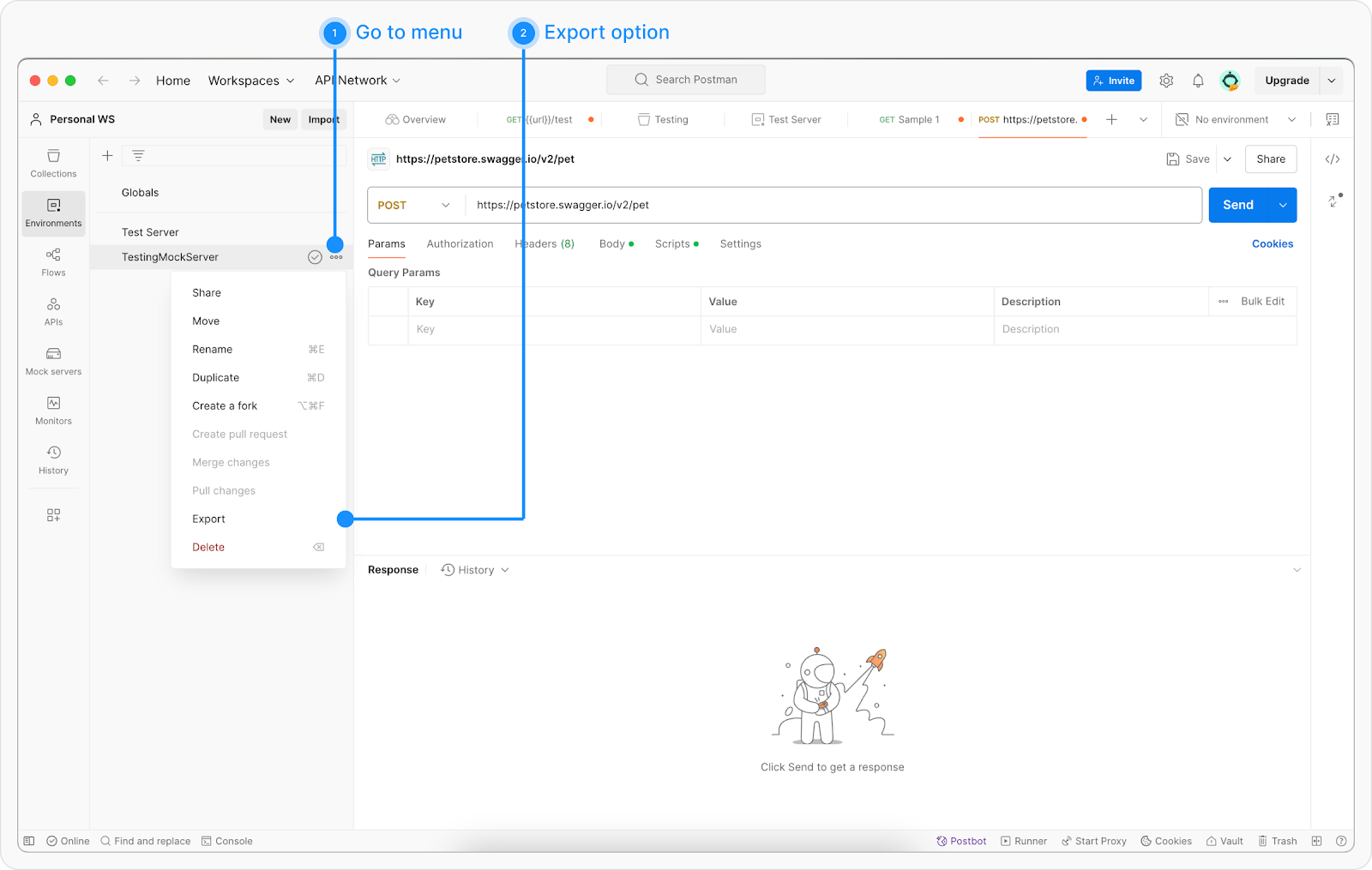
Step 2: Click the ellipsis (…) next to the environment you wish to export and select Export.
Step 3: Choose a location to save the exported environment file and click Save.
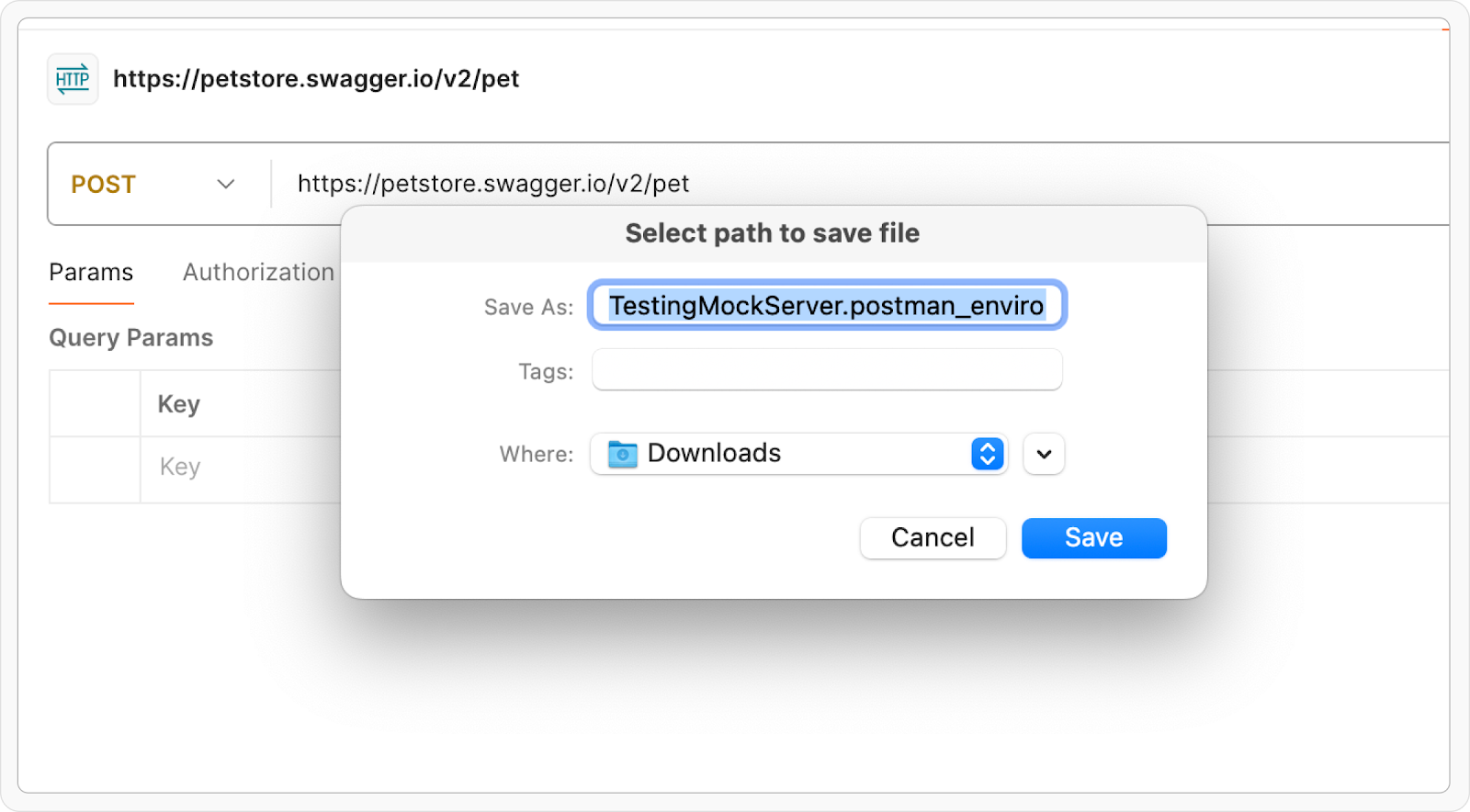
Step 4: Import using the same steps as explained in Import into Requestly section above.
After Migration
Once the import is complete, your API requests will be available inside Requestly’s API Client.
You can:
- Run API requests immediately
- Use environment variables
- Edit collections and requests
- Organize your API workflows
Your existing request structure will remain intact, making it easy to continue development.



Get Started for Free