






Get Requestly
Vue.js is a progressive JavaScript framework used to build dynamic, interactive user interfaces. Its component-based design and reactive data binding make it ideal for creating scalable single-page applications efficiently.
What is Accessibility in Vue.js?
Accessibility in Vue.js means building apps that work for users with disabilities by using semantic HTML, keyboard support, and screen reader compatibility.
Importance of Accessibility in Vue.js
Prioritizing accessibility in Vue.js is essential to deliver inclusive digital experiences. It ensures compliance with standards like WCAG, improves usability, expands audience reach, and reduces the risk of legal challenges.
This guide explores the fundamentals of Vue accessibility, common challenges, best practices, and how to test effectively across real devices and environments.
Accessibility in Vue.js Projects
Building web apps means designing interfaces that everyone can use. Vue.js includes support for users with visual, auditory, motor, or cognitive disabilities.
Its flexible component-based structure can lead to accessibility gaps if not handled deliberately.
The Web Content Accessibility Guidelines (WCAG) outline four fundamental principles that every Vue application should adhere to:
- Perceivable: Content must be presented in ways users can perceive. This includes providing text alternatives for images and ensuring sufficient color contrast.
- Operable: User interface components and navigation must be operable. All interactive elements must be accessible via a keyboard, without requiring a mouse.
- Understandable: Information and the operation of the user interface must be understandable. This involves maintaining clear navigation patterns and consistent component behavior.
- Robust: Content must be robust enough to be interpreted reliably by a wide range of user agents, including assistive technologies like screen readers.
Following these principles is essential for developing inclusive applications and avoiding compliance issues.
Why Vue Developers Need to Prioritize Accessibility
Accessibility is crucial for a positive user experience and expanding an application’s reach. Ignoring it can create barriers for users or expose a business to legal risks.
Here is why Vue developers must build with accessibility in mind:
- Broader User Base: Accessible interfaces benefit users with various impairments and also improve usability for all users in diverse environments.
- Improved SEO: Clean, semantic code, inherent to accessible design, enhances how search engines understand and rank content.
- Legal Compliance: Adhering to WCAG guidelines helps reduce the risk of lawsuits or regulatory penalties.
- Enhanced User Experience: Features designed for accessibility, such as logical focus order and visible focus states, improve overall usability for everyone.
Making Vue Components Accessibility-Ready
Well-structured, accessible components ensure every user can interact with the application effectively.
Here are accessibility considerations for commonly used Vue components:
- Buttons and Links: Use native HTML button and a tags for interactive elements instead of non-interactive div or span tags. Add aria-label when the purpose is not clear from the visual content alone.
- Modals: When a modal opens, focus must be set to the modal, trapped within its boundaries, and restored to the trigger element when closed. Include aria-modal=”true” and manage focus using Vue’s mechanisms.
- Tabs: Use proper ARIA roles: role=”tablist”, role=”tab”, and role=”tabpanel”. Ensure arrow keys navigate between tabs and active states are announced to screen readers.
- Dropdowns and Menus: Add aria-haspopup and aria-expanded attributes. Maintain a logical tab sequence and support arrow key navigation.
- Form Inputs: Always associate labels using label for=”” or aria-labelledby. Programmatically announce error messages using aria-live regions to screen readers.
The Importance of Color Contrast in Vue UI
Color contrast significantly impacts content legibility and accessibility. In Vue applications, where themes or styles can change dynamically, ensuring compliant contrast ratios is essential for users with low vision or color blindness.
Here is why color contrast matters:
- Readability: Clear contrast between text and background supports users across different lighting conditions and display types.
- WCAG Compliance: WCAG 2.1 mandates a contrast ratio of at least 4.5:1 for normal text and 3:1 for large text.
- Inclusivity: Over 300 million people globally have some form of color vision deficiency, making good contrast vital.
- Enhanced UX: Strong contrast benefits all users, especially when Browse under suboptimal conditions or on mobile devices.
- Visible Focus States: Ensure interactive elements have distinct and high-contrast focus indicators for keyboard navigation.
Dynamic Content and ARIA Live Regions in Vue
Vue’s reactivity allows for seamless updates to content on the page without a full page reload. However, these dynamic updates can be invisible to screen reader users unless specifically handled.
This is where ARIA live regions become critical.
An ARIA live region is a designated area on the page where assistive technologies automatically announce updates without needing to move focus.
This ensures that users relying on screen readers are immediately informed of important changes, such as:
- Form Validation Messages: When a user submits a form and receives an error message, an aria-live region can announce the error.
- Search Results: As a user types in a search bar, new results appearing dynamically can be announced.
- Status Updates: Messages like “Item added to cart” or “Your order has been placed” should be announced.
- Notifications: Any pop-up notification or toast message needs to be conveyed to the user.
To implement this in Vue, you would typically use a div element with an aria-live attribute set to polite (for non-urgent updates) or assertive (for critical, time-sensitive updates). When Vue updates the content within this div, screen readers will announce it.
Example:
<template>
 <div>
 <button @click="showMessage = !showMessage">Toggle Message</button>
 <div aria-live="polite" v-if="showMessage">
 <p>This is a dynamic message that will be announced!</p>
 </div>
 </div>
</template>
<script>
export default {
 data() {
 return {
 showMessage: false
 };
 }
};
</script>
Using ARIA live regions strategically ensures that all users, regardless of how they access content, receive timely and crucial information.
Testing Vue Application Accessibility
Vue’s dynamic rendering and custom components often introduce accessibility issues that visual checks alone can’t detect. Effective testing ensures your application is inclusive and WCAG-compliant.
Here’s how to test Vue accessibility effectively:
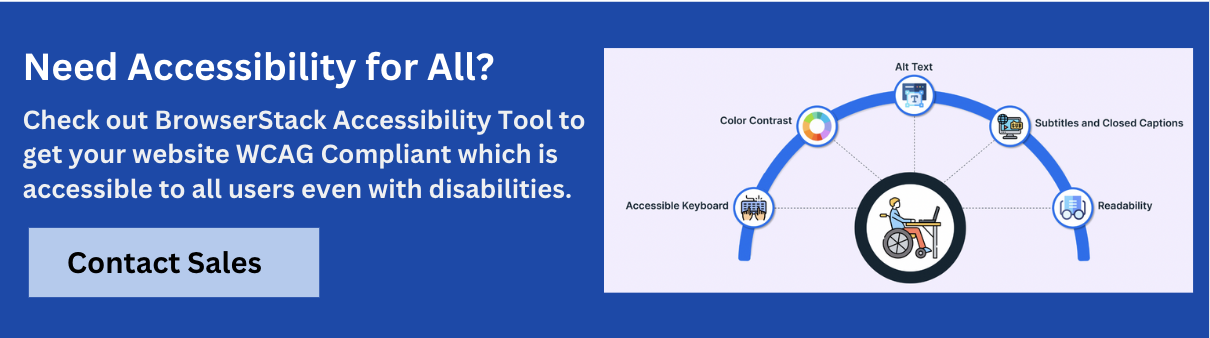
- Run Automated Audits: Use tools like eslint-plugin-vuejs-accessibility and BrowserStack Accessibility Testing to scan for WCAG issues across browsers and devices.
- Test Keyboard Navigation: Navigate using only the keyboard. Ensure all elements are accessible, focus order is logical, and modals trap and restore focus properly. BrowserStack flags tab order and focus issues automatically.
- Validate Screen Reader Behavior: Use screen readers like NVDA or VoiceOver. BrowserStack supports native readers on real devices to test labels, reading order, and announcements.
- Check Color Contrast: Verify text and UI contrast meets WCAG ratios. BrowserStack runs full-page and element-level contrast checks in real time.
- Integrate with CI/CD: Automate accessibility testing in your CI/CD pipeline. BrowserStack’s APIs catch regressions early in the development cycle.
- Test Dynamic and Responsive UI: Ensure Vue SPAs and dynamic content remain accessible across screen sizes. BrowserStack supports multi-device, real-world testing.
- Scan PDFs and Docs: Check accessibility for downloadable content like PDFs using BrowserStack’s document compliance scanner.
- Use Accessibility Tree Overlays: Visualize how assistive technologies interpret your app with BrowserStack’s accessibility tree and overlays.
BrowserStack Accessibility Testing also offers a free plan with unlimited WCAG scans, workflow validations, and screen reader testing. Developers can test up to 5 unique pages per scan, without any required setup.
Common Accessibility Challenges in Vue Interfaces
Despite Vue’s strengths, certain patterns often lead to accessibility concerns, particularly when building custom interfaces. Awareness of these pitfalls helps developers proactively avoid them.
Here are recurring accessibility challenges in Vue projects:
- Non-Semantic Interactive Elements: Using div or span for buttons or links breaks keyboard navigation and screen reader support.
- Broken Focus Flow: Modals and popups may open without capturing or restoring focus properly, disorienting keyboard users.
- Missing or Incorrect ARIA Attributes: Lack of descriptive roles or misapplied states can confuse assistive technologies.
- Silent Dynamic Updates: Reactive data changes might not be announced unless ARIA live regions are defined.
- Poorly Labeled Forms: Inputs without visible or programmatically associated labels limit screen reader usability.
- Inconsistent Color Contrast: Dynamic themes or custom styles often fail to maintain adequate color contrast across all states and configurations.
Essential Accessibility Best Practices for Vue Developers
Integrating accessibility is the most effective approach to building inclusive Vue applications. These best practices align with WCAG and modern development standards.
- Prefer Semantic HTML: Use standard HTML components (button, fieldset, label) to reduce reliance on ARIA and leverage built-in accessibility.
- Enable Keyboard-First Interaction: Ensure all user actions, including those in modals, menus, and tabs, are achievable without a mouse.
- Use ARIA Thoughtfully: Apply ARIA roles only where native HTML falls short. Test thoroughly to confirm their accuracy and benefit.
- Manage Dynamic Focus: Restore or shift focus predictably when the UI changes (e.g., opening or closing dynamic content).
- Label Inputs Clearly: Use visible labels and programmatically associate them with inputs for screen readers. Provide accessible error messages.
- Test Color Contrast: Verify contrast ratios for all text and interactive elements across all themes and states to maintain readability.
- Leverage ARIA Live Regions: Use aria-live regions to announce dynamic content updates to screen reader users.
Conclusion
Inclusive design is a fundamental requirement for modern web applications, and Vue.js is no exception.
By systematically following accessibility standards, utilizing semantic HTML, enabling keyboard and screen reader support, addressing dynamic content announcements, and testing rigorously, teams can create user-friendly experiences for everyone.
Embracing these practices ensures your Vue applications are visually appealing, functional, and universally accessible.



Get Started for Free