



Get Requestly
Login functionality is one of the most critical workflows in any web application. From e-commerce platforms and banking portals to SaaS dashboards, user authentication forms the gateway to secure interactions.
A broken or unreliable login flow directly impacts user trust and can even result in financial losses. Automating login tests with Selenium WebDriver ensures that authentication works seamlessly across browsers and devices while reducing manual effort and catching regressions early.
This guide explains in detail about each of these points.
Essential Setup for Automating Login with Selenium WebDriver
Before implementing login automation, a proper environment setup is required to ensure smooth execution. The following components form the foundation:
- Java Development Kit (JDK) or other language runtime: Selenium supports multiple languages, but Java is widely used. Installing the correct JDK ensures compatibility with Selenium libraries.
- Selenium WebDriver bindings: These are client libraries required for writing automation scripts in a chosen language.
- Integrated Development Environment (IDE): Tools like IntelliJ IDEA or Eclipse streamline coding, debugging, and script execution.
- Browser drivers: Each browser requires a specific driver (e.g., ChromeDriver for Chrome, GeckoDriver for Firefox). They act as a bridge between Selenium commands and browser execution.
- TestNG or JUnit (for Java): These testing frameworks provide structure for managing test cases, assertions, and reporting.
Ensuring all prerequisites are correctly installed and paths configured avoids common execution errors.
Step-by-Step Process for Login Automation in Selenium
Automating login involves a series of clearly defined actions, starting from browser setup to validating the final outcome.
Initialize the WebDriver instance
The first step is to create an instance of the WebDriver for the chosen browser. Example in Java:
WebDriver driver = new ChromeDriver();This instance allows communication with the browser and initiates automation.
Set up the desired browser configuration
Browser settings can be customized using Options classes. For example, running the browser in incognito mode or disabling notifications:
ChromeOptions options = new ChromeOptions();
options.addArguments("--incognito");
WebDriver driver = new ChromeDriver(options);
Configurations enhance control and simulate real-world conditions.
Launch and navigate to the application URL
After setup, the browser can be directed to the target login page:
driver.get("https://example.com/login");
driver.manage().window().maximize();
Maximizing ensures that all elements are visible, reducing locator issues.
Identify the required web elements
Locating fields and buttons is crucial for interaction. Selenium provides multiple strategies:
- By.id(“username”)
- By.name(“password”)
- By.xpath(“//input[@type=’submit’]”)
For example:
WebElement usernameField = driver.findElement(By.id("username"));
WebElement passwordField = driver.findElement(By.name("password"));
WebElement loginButton = driver.findElement(By.xpath("//button[@type='submit']"));
Interact with the located elements (input & clicks)
Once located, elements can be filled and interacted with:
usernameField.sendKeys("testuser");
passwordField.sendKeys("securePassword123");
loginButton.click();
These actions simulate real user behavior for login.
Validate and confirm the login outcome
Assertions confirm whether login succeeded. This can be done by verifying redirect URLs, checking for dashboard elements, or validating user session messages.
String expectedUrl = "https://example.com/dashboard";
Assert.assertEquals(driver.getCurrentUrl(), expectedUrl);
If assertions fail, it indicates issues with login functionality.
Handling Errors and Exceptions in Login Automation
Automated login tests can face several runtime challenges, such as:
- ElementNotVisibleException: Occurs when an element exists but is hidden due to UI rendering delays. Adding explicit waits solves this.
- NoSuchElementException: Triggered if the locator strategy fails. Review locator strategies or use dynamic XPath.
- TimeoutException: Happens when waiting conditions exceed limits. Configuring WebDriverWait with appropriate durations can fix this.
- StaleElementReferenceException: Appears when DOM reloads after locating an element. Re-locating the element often resolves it.
Implementing try-catch blocks and explicit waits (WebDriverWait) ensures scripts handle unpredictable conditions gracefully.
Executing Selenium Login Automation Scripts
To run login automation:
- Compile the script in the IDE.
- Use testing frameworks (like TestNG) to manage test execution and generate structured reports.
- Integrate with CI/CD pipelines (Jenkins, GitHub Actions, or Azure DevOps) for automated execution after code changes.
Automated execution ensures login functionality remains validated throughout development cycles.
Why Run Selenium Login Automation on Real Devices and Browsers?
Running login tests only on local environments does not reflect real-world conditions. Applications behave differently due to variations in rendering engines, browser versions, device hardware, and network conditions.
Key reasons include:
- Different browsers interpret JavaScript and CSS differently, affecting login element visibility and behavior.
- Device-specific factors such as mobile keyboards, screen sizes, and OS-level permissions can impact login workflows.
- Network conditions like slow 3G or fluctuating Wi-Fi may cause timeout issues.
- Local setup lacks the scale to test across hundreds of browser-device combinations.
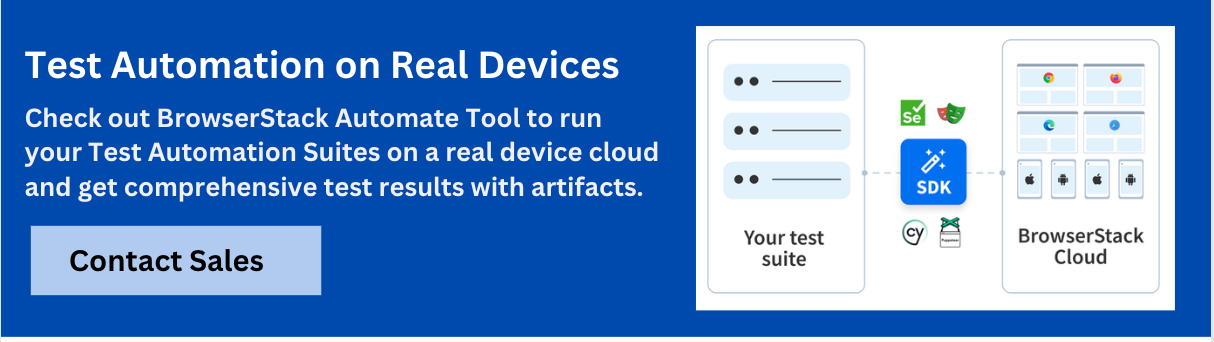
BrowserStack Automate is a testing platform that enables to perform Selenium tests on 3500+ real browsers and devices hosted on the cloud. It supports parallel execution, integration with CI/CD pipelines, and provides debugging features such as video logs and console output.
Running on real devices ensures authentication workflows are validated under actual user conditions, reducing flakiness and improving reliability.
Conclusion
Automating login with Selenium WebDriver not only streamlines repetitive validation but also strengthens application reliability. By setting up the environment, identifying elements correctly, handling errors gracefully, and running tests on real devices, teams can ensure seamless authentication across platforms.
Leveraging tools like BrowserStack Automate further enhances test coverage and ensures login functionality works as expected for every user.




Get Started for Free
Contact us