cURL is one of those tools that every developer encounters at some point in their career. Whether you’re testing APIs, debugging network issues, or automating data transfers, cURL is an indispensable command-line companion. In this comprehensive guide, we’ll explore everything you need to know about cURL, from the basics to advanced usage and testing workflows.
What is cURL?
cURL (Client URL) is a free, open-source command-line tool and library for transferring data using various network protocols. Created by Daniel Stenberg in 1997, cURL has become the de facto standard for making HTTP requests from the terminal.
At its core, cURL is designed to work with URLs. The name itself is a play on “see URL” – it allows you to interact with URLs directly from your command line without needing a browser or GUI application.
Key Features
Protocol Support: cURL supports an impressive array of protocols including HTTP, HTTPS, FTP, SFTP, SCP, TELNET, LDAP, and many more. This versatility makes it useful for far more than just web requests.
Cross-Platform: Available on Linux, macOS, Windows, and virtually every operating system you can think of, cURL ensures your scripts and workflows are portable.
Scriptable: As a command-line tool, cURL integrates seamlessly into shell scripts, CI/CD pipelines, and automation workflows.
Library (libcurl): Beyond the command-line tool, libcurl is a powerful library that developers can integrate into their applications for robust URL transfer capabilities.
How cURL is Commonly Used
cURL’s versatility means it appears in countless development workflows. Here are some of the most common use cases:
API Testing and Development
Developers use cURL extensively to test REST APIs during development. Instead of building a client application or using a GUI tool, you can quickly fire off requests to test endpoints, verify responses, and debug issues.
curl https://api.example.com/users
This simple command fetches user data from an API, allowing you to immediately see the response and verify your endpoint is working correctly.
Downloading Files
Need to download a file from the internet in a script or on a remote server? cURL makes it trivial:
curl -O https://example.com/file.zip
The -O flag tells cURL to save the file with its original filename, perfect for automated downloads.
Webhooks and Automation
Many automation scripts use cURL to trigger webhooks, send notifications, or integrate with third-party services. For example, posting a message to a Slack channel or triggering a GitHub Action.
Health Checks and Monitoring
System administrators and DevOps engineers use cURL in monitoring scripts to check if services are responding correctly:
curl -f https://myapp.com/health || echo "Service is down!"
Debugging Network Issues
When troubleshooting connectivity problems, cURL’s verbose output can reveal exactly what’s happening during a request, including DNS resolution, SSL handshakes, and server responses.
Form Submissions and Authentication
cURL can simulate complex browser behaviors like submitting forms, handling cookies, and managing authentication sessions, making it invaluable for testing user workflows.
Important cURL Parameters
Understanding cURL’s parameters is key to unlocking its full potential. Here are the most important flags and options you’ll use regularly:
Request Methods
-X, –request : Specifies the HTTP method to use (GET, POST, PUT, DELETE, PATCH, etc.). While GET is the default, you’ll frequently need to specify other methods.
curl -X POST https://api.example.com/users
Data and Body
-d, –data : Sends data in the request body, typically for POST requests. This automatically sets the Content-Type to application/x-www-form-urlencoded.
–data-raw : Similar to -d but doesn’t perform @ or < character substitution.
–data-binary : Sends data exactly as specified without any processing, useful for binary data.
-F, –form <name=content>: Submits data as multipart/form-data, perfect for file uploads.
Headers
-H, –header : Adds custom headers to your request. You can use this flag multiple times for multiple headers.
curl -H "Authorization: Bearer token123" -H "Content-Type: application/json" https://api.example.com/data
-A, –user-agent : Sets a custom User-Agent header.
Authentication
-u, –user : Provides credentials for HTTP authentication.
curl -u username:password https://api.example.com/secure
-E, –cert : Specifies a client certificate for authentication.
Output Control
-o, –output : Writes output to a specified file instead of stdout.
curl -o response.json https://api.example.com/data
-O, –remote-name: Saves the file with its remote filename.
-s, –silent: Suppresses progress meter and error messages.
-S, –show-error: Shows errors even in silent mode.
-w, –write-out : Displays custom information after the request completes, useful for performance metrics.
curl -w "Time: %{time_total}s\n" https://example.com
Debugging and Verbosity
-v, –verbose: Makes cURL verbose, showing detailed information about the request and response, including headers.
-i, –include: Includes response headers in the output.
–trace : Creates a full trace dump of all incoming and outgoing data.
Following Redirects
-L, –location: Follows HTTP redirects automatically.
curl -L https://short.url/abc123
SSL/TLS Options
-k, –insecure: Allows connections to SSL sites without verifying the certificate (use cautiously, primarily for testing).
–cacert : Specifies a custom CA certificate bundle.
Timeouts
–connect-timeout : Maximum time allowed for connection.
–max-time : Maximum time allowed for the entire operation.
curl --connect-timeout 5 --max-time 10 https://api.example.com/data
Cookie Handling
-b, –cookie : Sends cookies with the request.
-c, –cookie-jar : Saves received cookies to a file.
curl -c cookies.txt https://example.com/login

curl -b cookies.txt https://example.com/dashboard
How to Create cURL Requests
Creating effective cURL requests is a skill that improves with practice. Let’s walk through common scenarios from simple to complex.
Basic GET Request
The simplest form of a cURL request fetches a resource using HTTP GET:
curl https://api.example.com/users
This retrieves and displays the response body. If you want to see the headers too, add the -i flag:
curl -i https://api.example.com/users
POST Request with JSON Data
Modern APIs typically work with JSON. Here’s how to send JSON data in a POST request:
curl -X POST https://api.example.com/users \
     -H "Content-Type: application/json" \
     -d '{"name":"John Doe","email":"[email protected]","age":30}'
For better readability with complex JSON, you can store it in a file and reference it:
curl -X POST https://api.example.com/users \
     -H "Content-Type: application/json" \
     -d @user_data.json
Authenticated Requests
Many APIs require authentication. Here’s a request using Bearer token authentication:
curl https://api.example.com/protected \
     -H "Authorization: Bearer eyJhbGciOiJIUzI1NiIsInR5cCI6IkpXVCJ9..."
For basic authentication:
curl -u username:password https://api.example.com/secure
File Upload
Uploading files requires multipart/form-data encoding:
curl -X POST https://api.example.com/upload \
     -F "[email protected]" \
     -F "category=reports" \
     -F "public=true"
PUT and PATCH Requests
Updating resources typically uses PUT or PATCH:
curl -X PUT https://api.example.com/users/123 \
     -H "Content-Type: application/json" \
     -d '{"name":"Jane Doe","email":"[email protected]"}'
curl -X PATCH https://api.example.com/users/123 \
     -H "Content-Type: application/json" \
     -d '{"email":"[email protected]"}'
DELETE Request
Removing resources with DELETE:
curl -X DELETE https://api.example.com/users/123 \
     -H "Authorization: Bearer token123"
Complex Request with Multiple Options
Here’s a real-world example combining multiple parameters:
curl -X POST https://api.example.com/analytics \
     -H "Authorization: Bearer token123" \
     -H "Content-Type: application/json" \
     -H "X-Request-ID: abc-123" \
     -d '{"event":"page_view","user_id":"user_456","timestamp":"2026-02-12T10:30:00Z"}' \
     -w "\nStatus: %{http_code}\nTime: %{time_total}s\n" \
     -o response.json \
     -s -S
This request sends analytics data with authentication, custom headers, saves the response to a file, and displays timing information.
How to Import a cURL Request into Requestly
While cURL is powerful for quick tests and automation, managing and reusing complex requests can become cumbersome. This is where Requestly comes in.
Requestly is a lightweight HTTP toolkit that allows you to import, organize, and manage your API requests with a user-friendly interface.
Why Import cURL into Requestly?
Visual Interface: Instead of typing long command-line strings, you can see and edit your requests in a clean, organized interface.
Request Collections: Group related requests together, making it easy to test entire workflows or feature sets.
Environment Variables: Store API keys, base URLs, and other values as variables that can be reused across multiple requests.
Easy Editing: Modify headers, body, parameters, and authentication without reconstructing the entire cURL command.
Response Inspection: Better visualization of JSON responses, headers, and status codes.
Sharing: Share requests and collections with team members for collaborative API development.
Step-by-Step: Importing cURL into Requestly
Step 1: Copy Your cURL Command
First, get your cURL command. This could be one you’ve written, or one copied from browser DevTools as mentioned earlier.
curl -X POST https://api.example.com/users \
     -H "Authorization: Bearer token123" \
     -H "Content-Type: application/json" \
     -d '{"name":"John Doe","email":"[email protected]"}'
Step 2: Open Requestly
Navigate to Requestly in your browser or open the Requestly extension. Access the API Client section.
Step 3: Import the cURL Command
Find the Import option inside Requestly. You’ll usually see it in the top menu or as a button labeled “Import cURL” or simply “Import.”
Click it, and a dialog box will open where you can paste your full cURL command for automatic parsing.
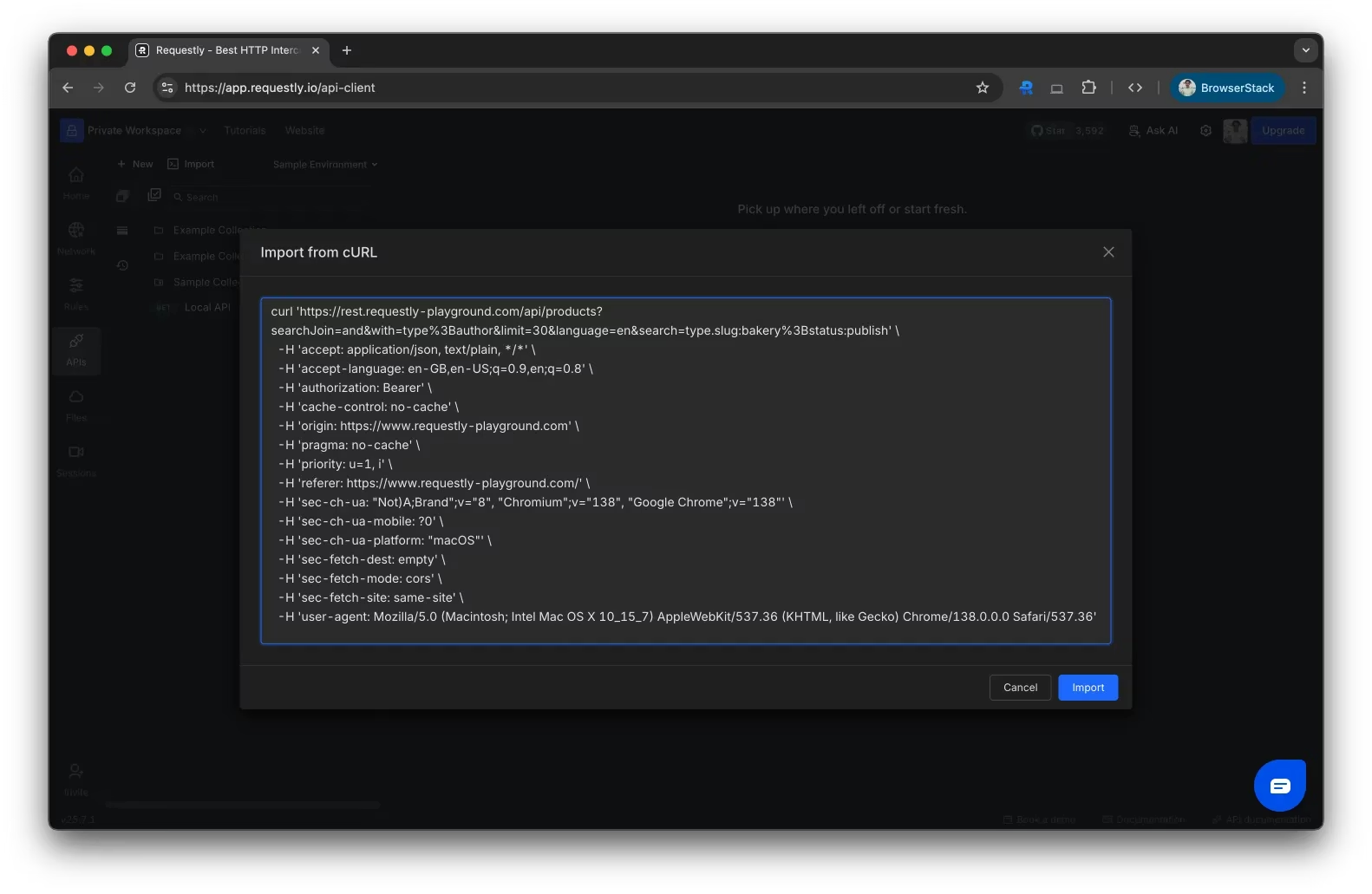
Alternatively, you can skip the import flow and directly paste the cURL command into the request URL field. Requestly will automatically detect it and convert it into a structured request.
Step 4: Review and Edit
Once imported, Requestly displays your request in a structured format with separate sections for URL, method, headers, body, and parameters. Review each section to ensure everything imported correctly.
Verify that the response matches what you expected from the original cURL command.
Benefits of the Requestly Workflow
Faster Iteration: Making changes to requests is much faster with a GUI compared to editing command-line strings.
Better Collaboration: Share collections with teammates so everyone is testing against the same endpoints with the same parameters.
Request History: Requestly maintains a history of your requests and responses, making it easy to compare results over time.
Testing Workflows: Chain requests together to test complete user flows, using response data from one request as input to the next.
Documentation: Your organized collections serve as living documentation of your API endpoints.