
Home / Blog / HTTP Interceptor
HTTP InterceptorShare rules and collaborate with team mates!

Requestly offers a ton of features which just make surfing the web a whole lot easier, be it for Web Designers, Product Marketers or even Developers in general. Definitely at some point, you would want to share the rules you would have created with your colleagues and other developers. We will show you how you can share a list of rules create by you, Let’s dive right in!
See how this works:
Create a Shared List
The process of sharing rules is fairly simple and I’ll show how to do it in just a few steps:
- Select the rules from the list that you would like to share
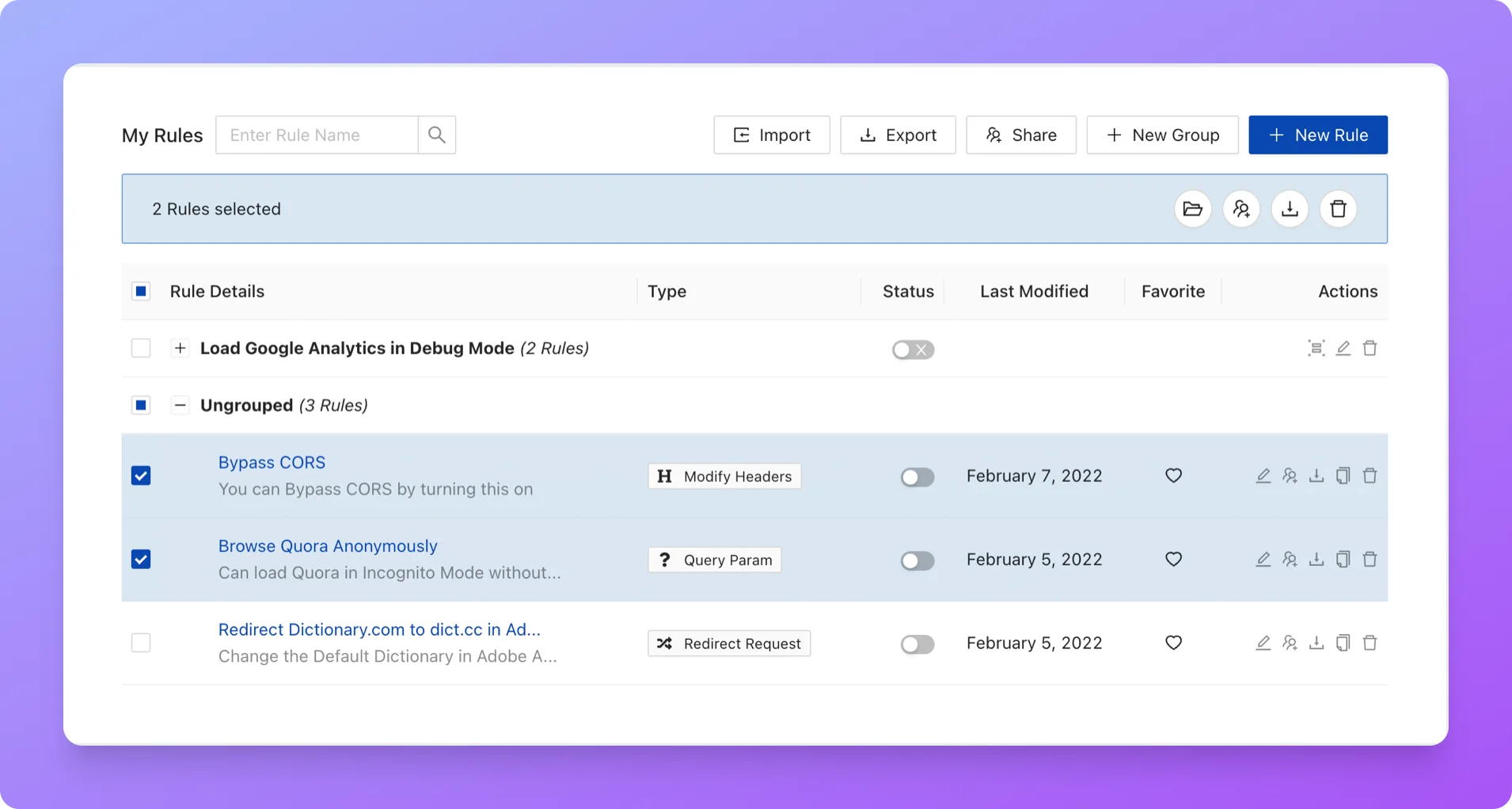
- Next Click the Share Button on the toolbar which appears after the rules to be shared have been selected.
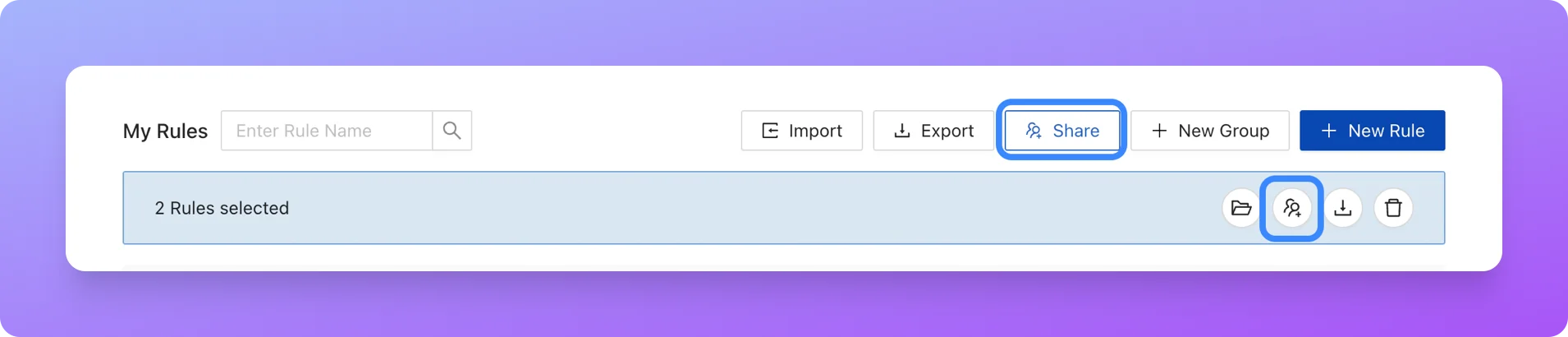
- At this point if you aren’t Logged into your account, you will be prompted to Log In.
- If Logged in, then your shared list will be created successfully and this dialog will appear with some pre-defined details
like your shared list name and public URL.
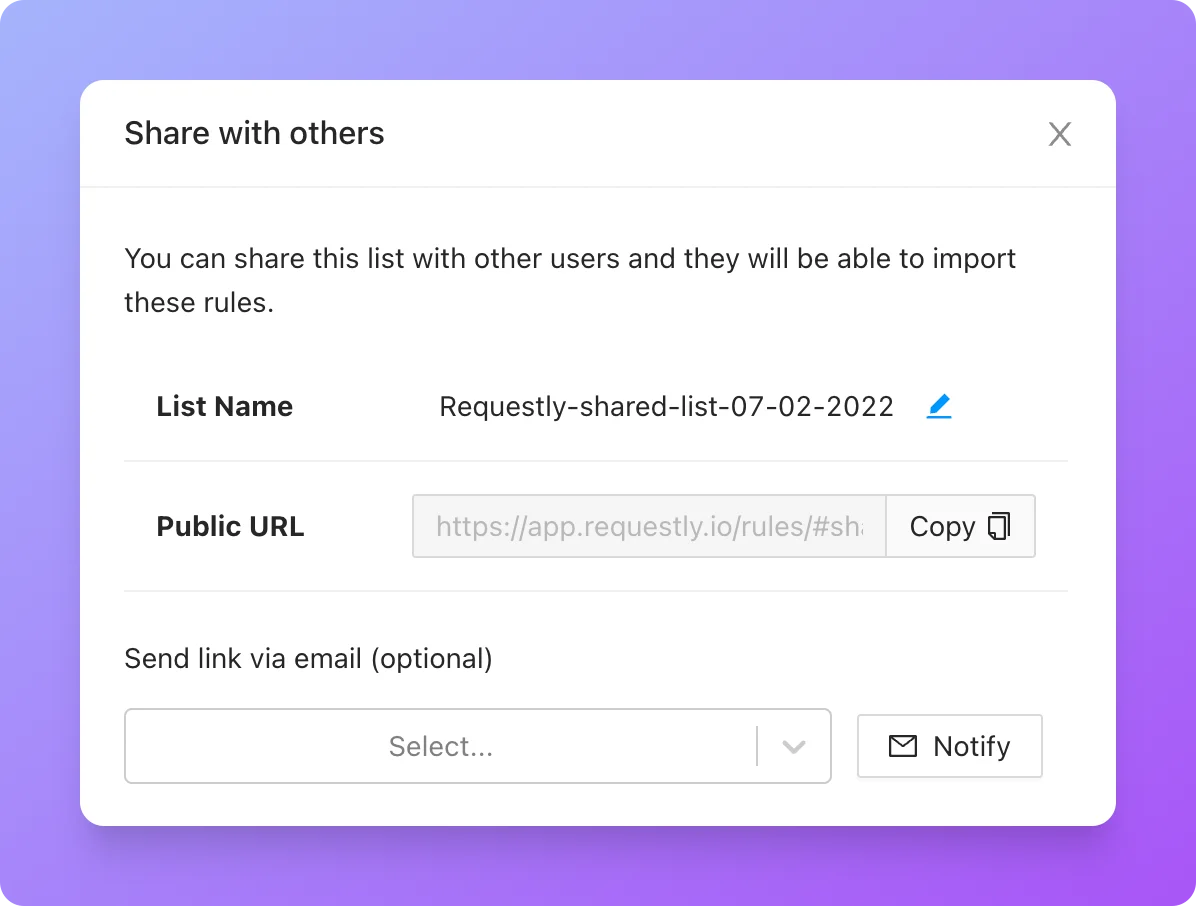
- Now if you wish to rename your shared list then you can do so by simply clicking on the edit icon next to your shared list name.
Once edited, simply press enter to save the changes and update the URL accordingly.
-
From here on you can either copy the link and share with your colleagues and friends (or) you can enter emails
separated by a comma (,) and they will be notified from our end. -
You can manage your Shared List from Shared List option on the top nav bar.
Import a Shared List in Web!
- Click on the Shared List Link given to you. The link should be in this form – https://app.requestly.io/shared-lists/viewer/1625686153436-Sample-Rules
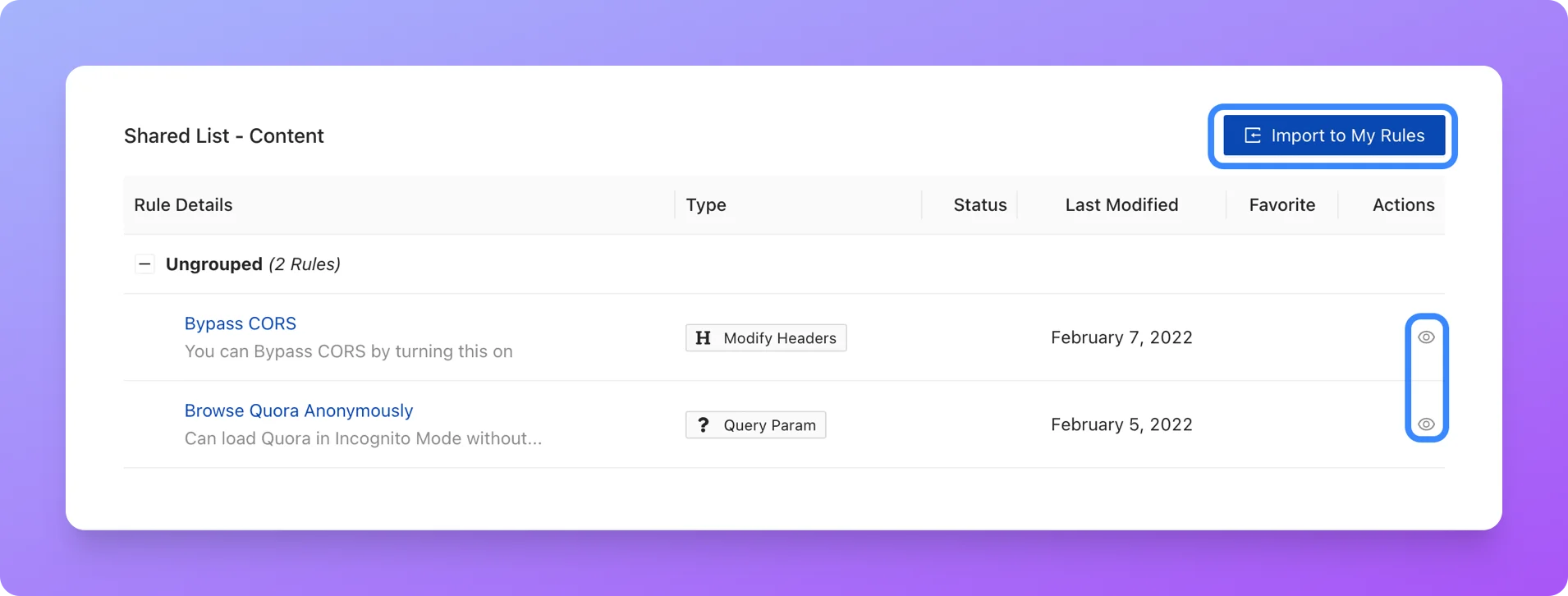
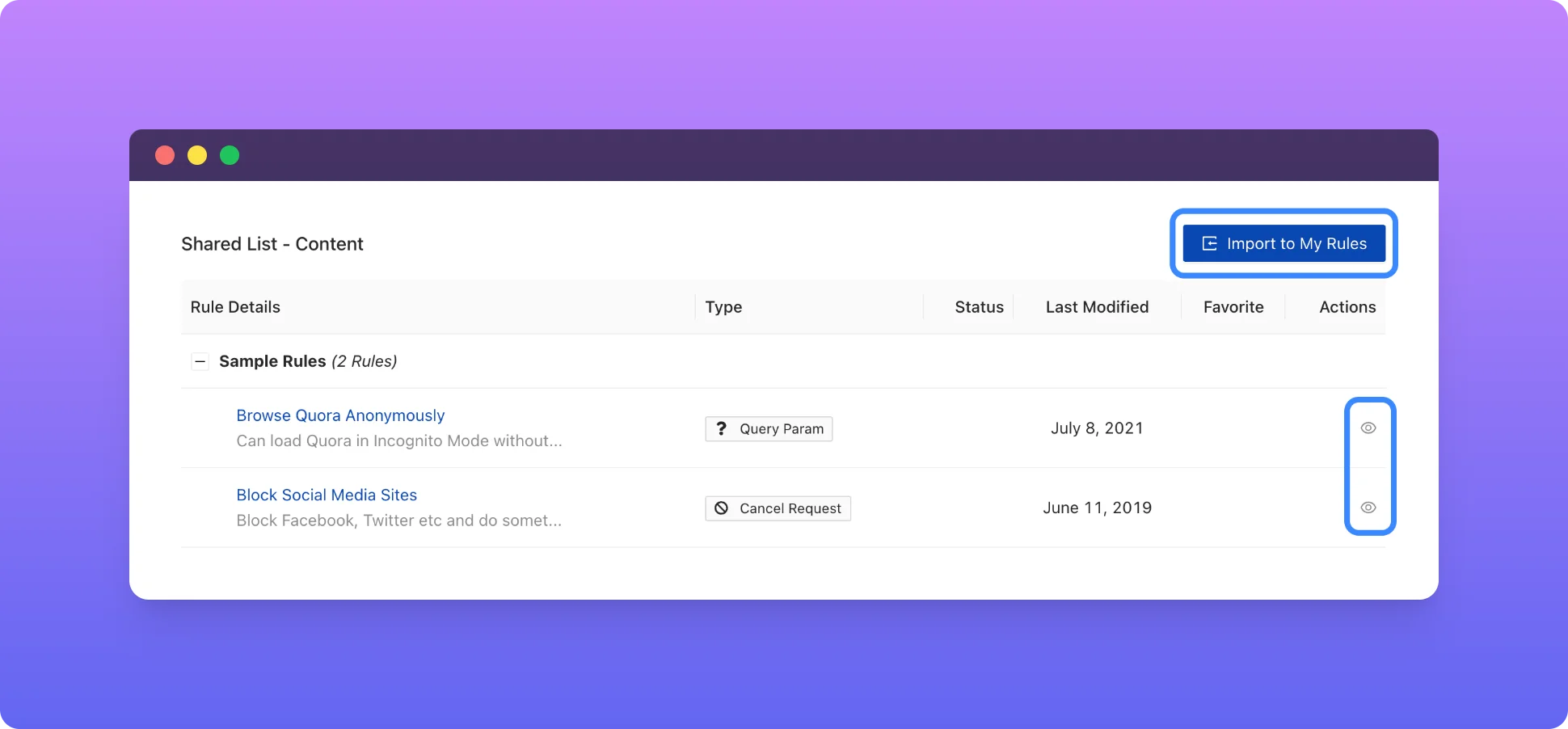
- Click on the 👁️ icon to preview the rule.
- Click on Import List button to download the rules on your system.
Import a Shared List in Requestly Desktop App
Incase you don’t know then requestly even comes with a desktop app which you can download from this link.
Now in order to import a shared list in desktop app you need to follow the following steps.
- Navigate to the shared list section from the top nav bar.
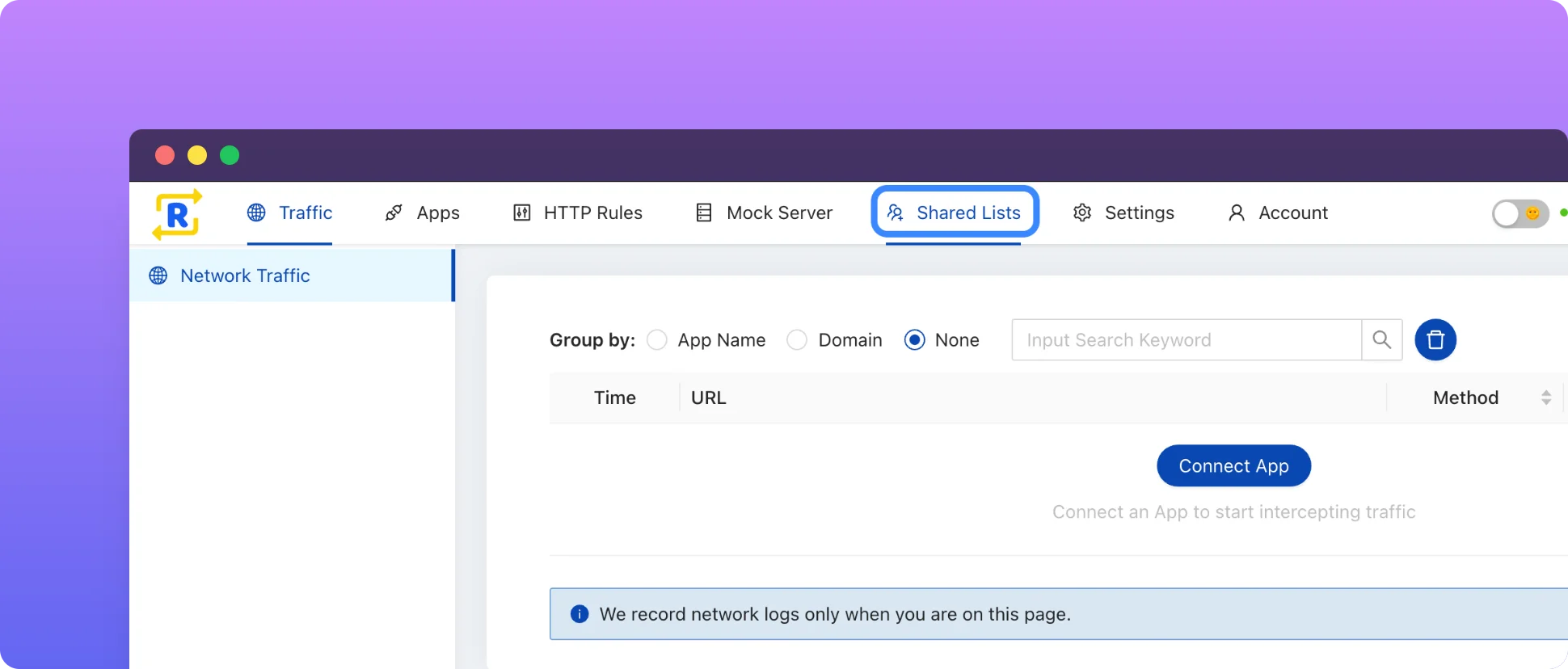
- At this point if you aren’t Logged into your account, you will be prompted to Log In.
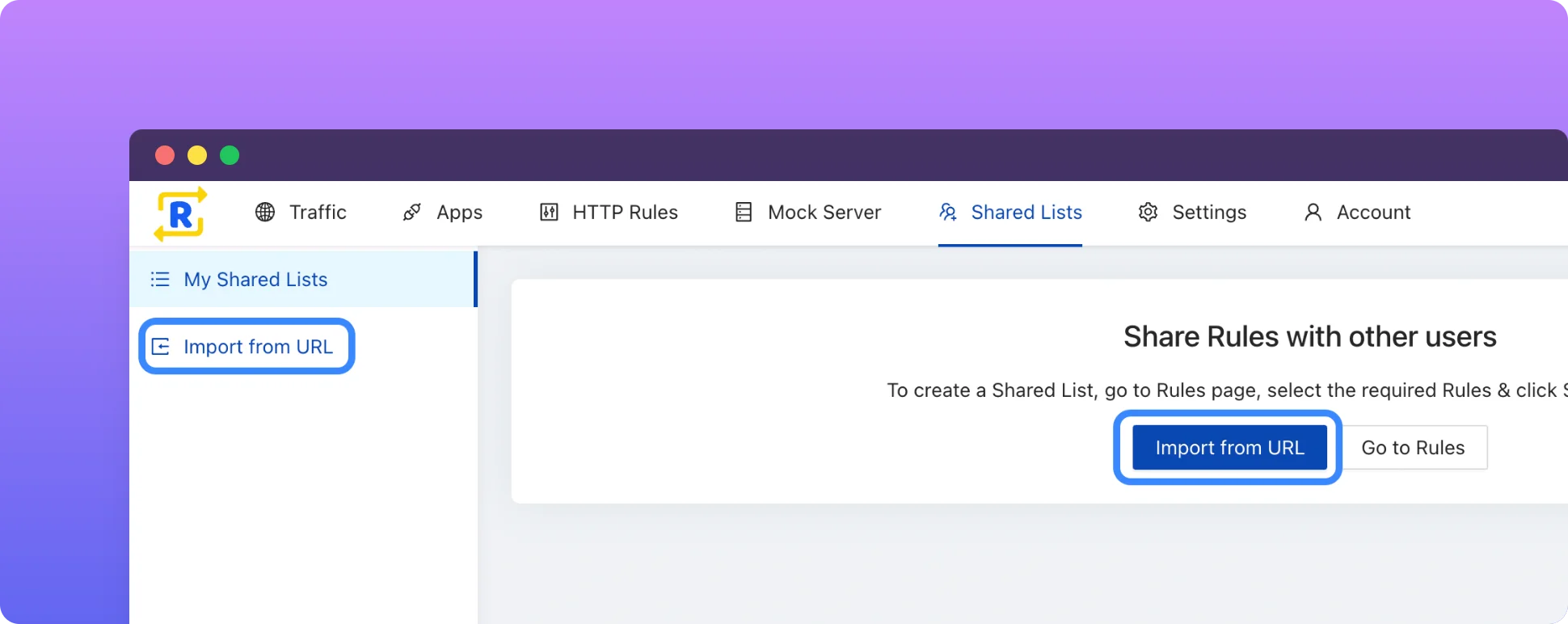
- Once logged in, you need to click on the “Import from URL” button accessible from both sidebar as well as from main section itself.
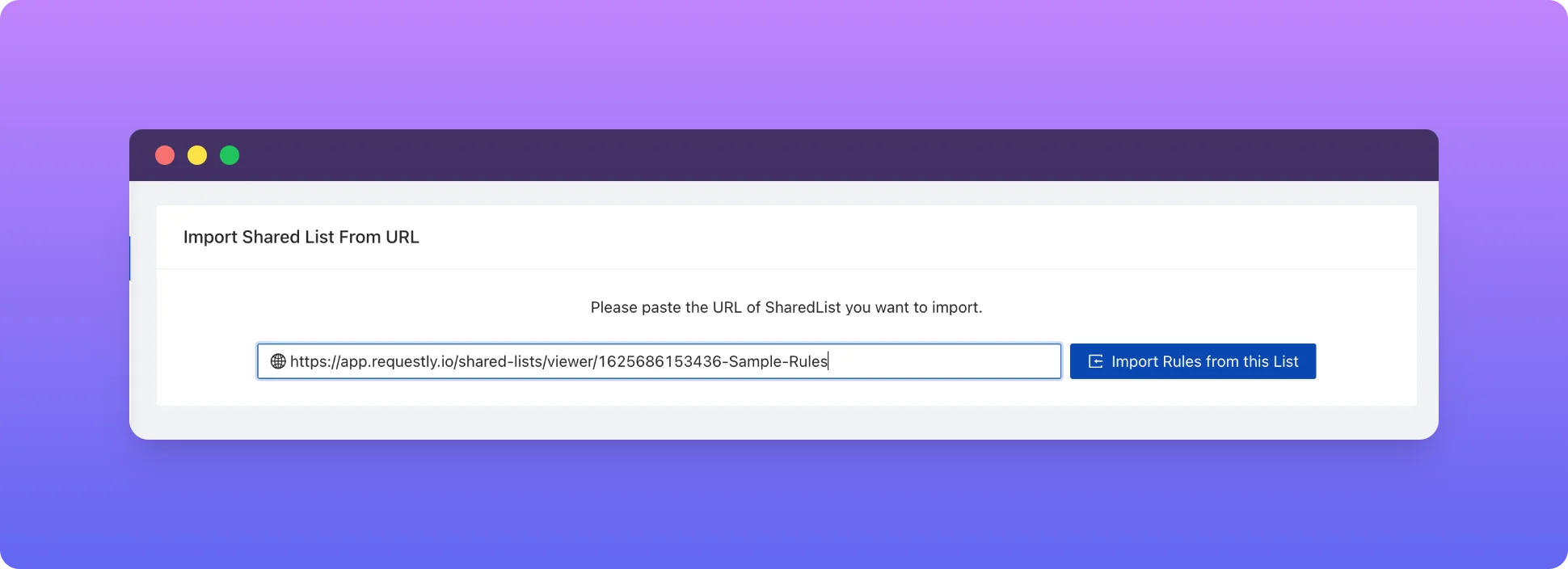
- Now paste the link given to you in the input box. The link should be in this form https://app.requestly.io/shared-lists/viewer/1625686153436-Sample-Rules. which will redirect you to preview shared list content section.
- Click on the 👁️ icon to preview the rule.
- Click on Import to My Rules button to import the rules on your dashboard.
Test any API request visually: import a cURL command or build from scratch in Requestly, the API client for developers.
Download →