


Get Requestly
NVDA is one of the most widely used screen readers for accessibility testing. It helps developers and testers evaluate how screen reader users experience websites.
What is NVDA Screen Reader: NVDA (NonVisual Desktop Access) is a free, open-source screen reader for Windows that converts on-screen content into speech or Braille output. It enables users with visual impairments to navigate and interact with digital interfaces using keyboard commands.
Installing NVDA Screen Reader:
- Visit nvaccess.org to download the latest version
- Launch the installer and choose between standard or portable installation
- Set startup preferences and speech synthesizer options
- Follow the guided steps to complete setup
- Start NVDA using Ctrl + Alt + N or via the Start menu
This article covers installing, navigating, and testing with NVDA, plus best practices, tool comparisons, and WCAG compliance tips.
What Are NVDA Screen Readers?
An NVDA screen reader is an assistive technology tool that helps users with visual impairments access and interact with digital content using keyboard navigation and speech or Braille output.
Key Features of NVDA Screen Readers:
- Converts on-screen text into synthetic speech or Braille
- Supports navigation of webpages, documents, and software applications
- Recognizes and reads structural elements like headings, lists, and tables
- Detects interactive components such as buttons, links, and forms
- Works with multiple web browsers and desktop applications
NVDA stands out as a reliable, open-source solution widely adopted for both personal use and accessibility testing.
What Is NVDA and How Does It Work?
NVDA (NonVisual Desktop Access) is a free, open-source screen reader designed for the Windows operating system. It enables non-visual interaction with digital interfaces through speech and Braille feedback.
How NVDA Works:
- Interacts with Windows accessibility APIs (UI Automation, IAccessible, MSAA)
- Extracts content and structure from web pages and software interfaces
- Announces element roles, states, and values using keyboard shortcuts
- Supports navigation through key regions such as headings, landmarks, and tables
- Can be customized for verbosity, language, and reading modes
As part of any NVDA screen reader tutorial, understanding its interaction with system APIs is essential for accurate accessibility testing.
Why NVDA Matters for Accessibility Testing
The NVDA screen reader plays a critical role in making digital experiences accessible to users with vision impairments. For developers and QA teams, it is a practical tool to ensure compliance with accessibility standards.
Reasons NVDA Is Valuable for Testing:
- Helps identify issues in semantic structure, ARIA labels, and dynamic content
- Provides insights into how screen reader users experience websites and apps
- Supports validation against WCAG (Web Content Accessibility Guidelines)
- Ideal for testing keyboard navigation and focus management
- Enables real-world validation across browsers, especially when paired with testing platforms
Installing NVDA Screen Reader
Installing the NVDA screen reader is a straightforward process and takes only a few minutes. It can be installed permanently or run as a portable application, depending on user preference.
How to Install NVDA:
- Visit the official NV Access website at nvaccess.org.
- Click on the “Download” button to get the latest version of NVDA.
- Run the downloaded .exe file to launch the installer.
- Choose between a standard installation or portable mode.
- Follow the prompts to complete the installation.
During setup, users can configure startup preferences and select a speech synthesizer. NVDA uses eSpeak NG by default but also supports Microsoft OneCore voices and SAPI5 for enhanced speech output.
Minimum System Requirements:
- Operating System: Windows 7 SP1 or later
- RAM: 1 GB or higher
- Disk Space: Minimum 300 MB
- Internet connection for downloading updates
Once installed, NVDA can be launched using the shortcut Ctrl + Alt + N or from the Windows Start menu.
NVDA Keyboard Shortcuts and Navigation
NVDA screen reader relies entirely on keyboard commands for interaction. Understanding these shortcuts is essential for efficient navigation and accessibility testing.
Essential NVDA Commands:
- NVDA + N: Opens the NVDA menu
- NVDA + Q: Quits NVDA
- NVDA + Ctrl + N: Starts NVDA if not already running
- Insert + Arrow Keys: Navigates by line or paragraph
- Tab / Shift + Tab: Moves forward or backward between interactive elements
- H: Skips to the next heading
- K: Moves to the next link
- T: Jumps to the next table
- F: Moves to the next form field
Users can also use object navigation keys to inspect non-standard elements or custom components.
For accessibility testing, navigating web pages using these shortcuts helps identify gaps in focus order, missing semantic tags, and poor ARIA implementations.
Testing Web Accessibility With NVDA Screen Readers
NVDA screen readers play a vital role in testing whether websites are perceivable and operable for users with visual impairments. Testing with NVDA helps uncover accessibility barriers that automated tools may miss.
What to Test Using NVDA:
- Semantic Structure: Ensure correct use of headings, lists, and landmarks.
- Keyboard Focus: Check whether all interactive elements are accessible via keyboard.
- Form Labels: Validate that form inputs are properly labeled and announced.
- Dynamic Content: Verify that changes triggered by JavaScript (e.g., modals, alerts) are announced correctly.
- ARIA Roles and States: Test if ARIA attributes convey the right context and updates.
To begin testing, open the website, start NVDA, and use standard keyboard shortcuts to navigate. Listen for missing labels, incorrect announcements, and inconsistencies in focus behavior.
For broader coverage, use NVDA alongside real devices and browsers to ensure consistent user experience. Platforms like BrowserStack Accessibilty Testing allow testing with NVDA on actual operating systems for more accurate results.
Advanced NVDA Features for Power Users
Several advanced features can significantly enhance productivity and testing accuracy for users looking to get more out of NVDA. These capabilities are especially valuable for testers, developers, and accessibility specialists who require deeper interaction and configuration flexibility.
Key Advanced Features:
- Speech Viewer: Displays NVDA’s spoken output in a visual window, useful for demos, testing, and error tracking.
- Configuration Profiles: Create multiple profiles with specific settings to simulate different user experiences or testing scenarios.
- Braille Display Support: Connects with over 50 Braille display models, allowing tactile output alongside speech feedback.
- Custom Scripts and Add-ons: Extend NVDA functionality with community-developed scripts to adapt to unique interface elements.
- Audio Ducking: Lowers the volume of other system sounds when NVDA is speaking, improving focus and clarity.
- Focus Highlight: Visually indicates the object NVDA is interacting with, helpful for collaborative debugging or demonstrations.
These advanced options allow for greater control and customization during accessibility audits or real-world usability tests.
Best Practices for Accessibility Testing Using NVDA Screen Readers
Using NVDA screen readers for accessibility testing goes beyond reading content, it requires a structured approach to ensure every user interaction is perceivable, operable, and understandable.
The following best practices will help teams maximize coverage and accuracy:
Proven Accessibility Testing Practices:
- Test Real User Workflows: Evaluate not just static pages but dynamic flows such as forms, modals, and navigation menus. Use tools like BrowserStack’s Workflow Scanner to automatically detect issues like tab order, missing roles, and incorrect focus handling.
- Validate Semantic Structure: Navigate using NVDA keyboard shortcuts (H for headings, F for form fields) to verify proper HTML markup. BrowserStack’s automated tests also flag heading structure issues and ARIA misuses in real time.
- Check for Visual and Functional Contrast: Use NVDA alongside tools like BrowserStack’s Color Contrast Analyzer to identify low contrast text and non-compliant UI elements.
- Inspect Accessibility Tree: Validate how assistive technologies interpret elements by examining the accessibility tree and overlays—an essential part of testing custom components.
- Ensure Responsive and Dynamic Content Support: Test across devices and screen sizes. NVDA combined with BrowserStack enables testing on real Windows systems and responsive environments, including SPAs (single-page applications).
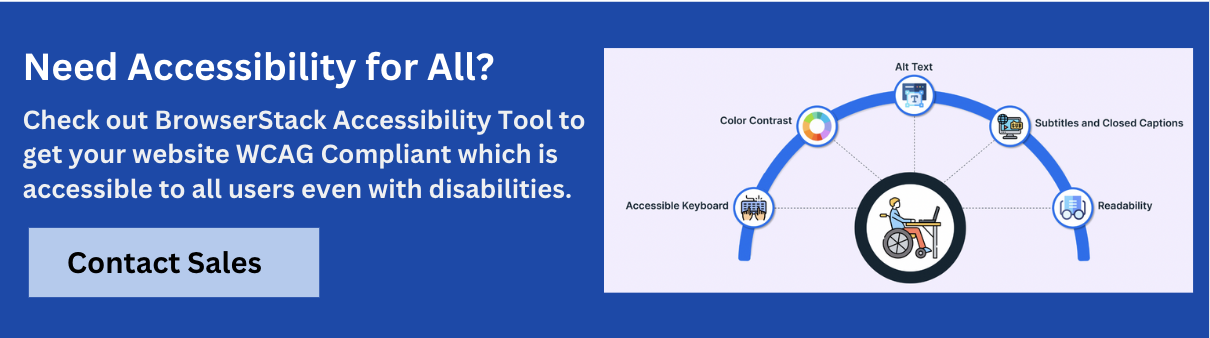
Free Accessibility Testing on BrowserStack: Run unlimited scans for WCAG compliance, test up to 5 user flows per scan, and get assisted keyboard navigation reports.
Comparing NVDA With Other Screen Readers!!
While NVDA is a leading screen reader for Windows, it’s important to understand how it compares to other tools like JAWS and VoiceOver.
| Feature | NVDA | JAWS | VoiceOver |
| Platform | Windows | Windows | macOS, iOS |
| Cost | Free | Paid (license required) | Free with Apple devices |
| Braille Support | Yes | Yes | Yes |
| ARIA Support | Strong | Strong | Strong |
| Community & Customization | Open-source, active community | Proprietary | Apple-controlled |
Key Takeaways:
- NVDA is ideal for open-source, cost-effective testing on Windows.
- JAWS is preferred in enterprise settings requiring extensive customization.
- VoiceOver is necessary when testing accessibility on Apple devices.
Including all three tools in testing ensures broader accessibility coverage, especially when evaluating cross-platform web apps.
Common Challenges With NVDA Screen Readers
Despite its robust capabilities, NVDA presents certain challenges during accessibility testing. Being aware of these can help teams plan for more comprehensive audits.
Common Issues:
- Inconsistent ARIA Feedback: NVDA may interpret ARIA attributes differently from other screen readers, leading to inconsistent results across platforms.
- Limited PDF Support: NVDA’s native handling of complex PDFs can be limited, making it essential to use supplemental document scanners.
- Dynamic Content Announcements: Without proper ARIA live regions, NVDA might not announce content updates triggered by JavaScript.
- Keyboard Trap Detection: If focus management is poorly implemented, NVDA users may get stuck in modals or off-screen components.
- Speech Variation by Synthesizer: The choice of speech engine (e.g., eSpeak vs OneCore) can impact how clearly NVDA reads out elements, especially abbreviations or symbols.
To mitigate these issues, testers should validate across multiple configurations and supplement manual testing with automated reports where applicable.
Conclusion
NVDA screen readers are a powerful tool for ensuring that digital content is accessible to users with visual impairments. From basic navigation to advanced configuration, NVDA supports comprehensive accessibility evaluation when used effectively.
Whether used by developers, testers, or compliance teams, NVDA remains vital to any accessibility-first testing strategy.



Get Started for Free
Contact us