
Home / Guides / How to Load Non-Minified Google Tag (GPT) Scripts on Production
GuideHow to Load Non-Minified Google Tag (GPT) Scripts on Production
 Kanishk Rawat·Sep 2, 2024
Introduction
For troubleshooting and optimizing ad setups, non-minified GPT scripts are easier to debug. Requestly lets you load these non-minified scripts in production without altering your site’s core code. This post explains how to configure Requestly for this task.
Why Use Requestly?
Requestly lets you modify, redirect, and insert scripts into HTTP requests and responses. It helps with testing and debugging by allowing you to load non-minified GPT scripts in production, optimizing performance without disrupting the live site.
Setting Up Non-Minified GPT Script Loading with Requestly
1. Install Requestly
Begin by installing the Requestly extension from the Chrome Web Store or Requestly’s official website.
Add to Chrome Add to Safari Add to Edge Add to Firefox Open App Download for other platforms
2. Set Up a Redirect Rule
The Redirect Rule in Requestly allows you to redirect requests for minified scripts to their non-minified counterparts. This is particularly useful for loading readable, non-minified GPT scripts in your production environment for debugging and optimization.
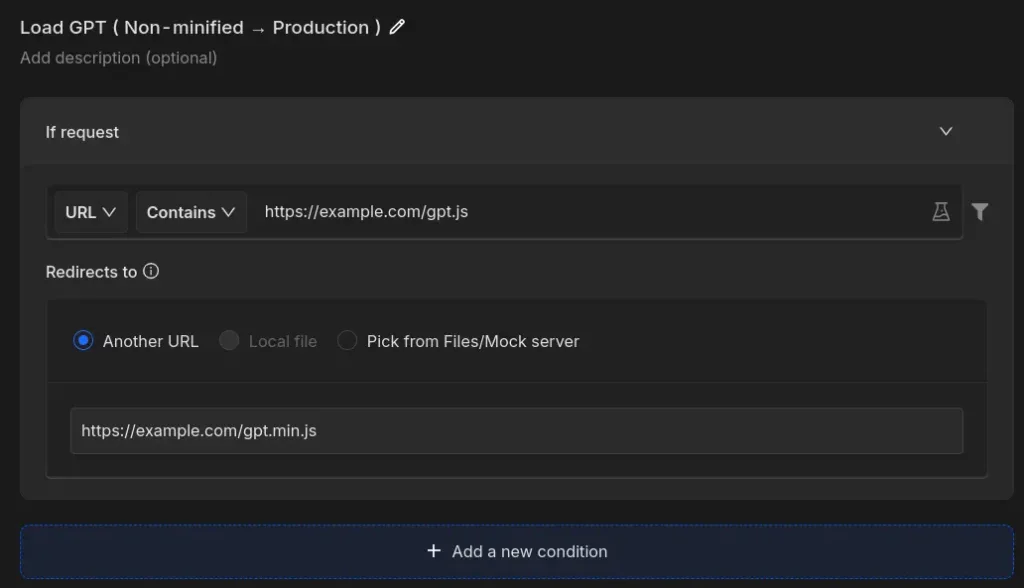
Here’s how to set up a redirect rule for GPT scripts:
- Open Requestly: Click on the Requestly icon in your browser.
- Create a New Rule: Click on ‘New Rule’ and select ‘Redirect Rule.’
- Enter the Minified Production URL Pattern: Add the URL pattern for the minified GPT scripts used in your production environment. This tells Requestly which requests to redirect.
- Specify the Non-Minified URL: Enter the URL for the non-minified version of the GPT scripts. This URL will be the target of the redirect.
- Example Minified URL:
https://example.com/gpt.min.js - Example Non-Minified URL:
https://example.com/gpt.js
- Example Minified URL:
- Save the Rule: Click ‘Save’ to create the rule and ensure the rule is activated by toggling the switch to the ‘On’ position.
Conclusion
Using Requestly to load non-minified GPT scripts on production is a great way to gain insights into your ad code and troubleshoot issues more effectively. This approach allows you to work with readable, debuggable code in a live environment, making it easier to identify and resolve problems.
Explore More:
Try it in Requestly, the privacy-first API client and HTTP interceptor for developers.
Download →