
How to load Prebid.js from staging sever on production?
 Kanishk Rawat·Aug 20, 2024·4 min read
Introduction
When you’re developing and testing changes to your Prebid.js setup, ensuring everything functions perfectly before deployment is critical. A common practice is to load Prebid.js script from a staging or local server into your production environment for final testing. This approach allows you to validate changes in a real-world setting without risking your live environment. However, managing this can be challenging, especially without the right tools. This is where tools like Charles, Fiddler, or Requestly come into play.
While proxy tools like Charles and Fiddler are powerful, people prefer Requestly for several reasons:
-
Browser Extension: Requestly works directly in your browser, eliminating the need for context switching and bypassing installation permission issues.
-
No VPN Issues: Unlike some proxy tools, Requestly works seamlessly without VPN-related complications.
-
Modern UI: Requestly offers a user-friendly interface, making it easier to create and manage rules.
-
Top-Notch Support: The Requestly team provides excellent support, ensuring you get the help you need when you need it.
Prerequisites
Before we begin, ensure you have the following:
- Prebid.js: A working version of Prebid.js hosted on a staging server.
- Requestly Browser Extension: Install the Requestly extension in your browser. It’s available for Chrome, Firefox, and Edge.
Why Load from Staging or Local Environments?
Testing your Prebid.js setup from a staging or local environment allows you to identify and fix issues before they impact your live site. By doing so, you can:
- Avoid Downtime: Catching errors in staging prevents potential downtime on your live site.
- Ensure Compatibility: Verify that your changes work well with your live site’s existing setup.
- Test in Real-World Scenarios: Simulate how your setup will behave under real-world conditions without impacting actual users.
How to Load Prebid.js from Staging or Local Server
In this blog post, we’ll walk you through how to use Requestly to load your Prebid.js script from a staging server onto your production site. This method is efficient, safe, and allows for comprehensive testing without modifying your live environment.
Understanding the Replace Rule
Replace Rule enables you to replace a String in URL with another String. This feature is particularly useful for developers who want to swap the API endpoints from one environment to another or change something specific in the URL. Requests are matched with source condition, find and replace is performed on those requests and redirected to the resulting URL.
Setting Up Requestly
Step 1: Install Requestly
Go to the Requestly website, download the extension for your browser, and install it.
Step 2: Create a New Replace Rule in Requestly
 To load Prebid.js from your staging server instead of the production server, you’ll need to create a new redirect rule in Requestly. Follow these steps:
- Open Requestly: Go to requestly app , click on HTTP Rule .
- Choose Rule Type: Select Replace URL from the list of options. This allows you to replace the URL of the Prebid.js script with your staging server URL.
- Configure the Rule:
- Replace URL: In the Original URL field, enter the URL of the Prebid.js script as it is loaded on the production site (e.g.,
https://cdn.production.com/prebid.js). - With: In the “Replace with” field, enter the URL of the Prebid.js script on your staging server (e.g.,
https://cdn.staging.com/prebid.js).
- Replace URL: In the Original URL field, enter the URL of the Prebid.js script as it is loaded on the production site (e.g.,
- Save the Rule: Give your rule a name (e.g., “Load Staging server”) and save it.
Testing Your Rule
After setting up the redirect, it’s important to test it to ensure it works properly.
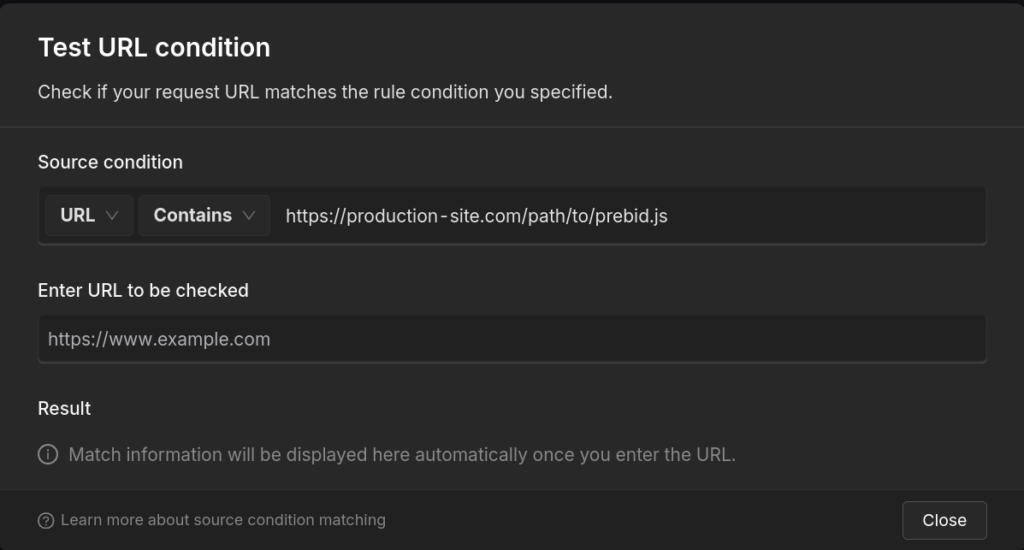
Test URL Condition
Leverage the Test URL condition feature to confirm that the URLs you’re targeting match the conditions set in your rule.
To access the Test URL Condition popup:
- Navigate to the rule
- Click on the Test URL Condition button.

This will open a popup where you can input a URL to see if it meets the conditions defined in your rule.
Test the Rule
Use the Test this rule feature to ensure your redirect rule functions as intended before deployment.
To use this feature:
- Select the rule you want to test.
- Click on the Test button.

- Enter the Url you want to test
- Click Test Rule
This will help you verify that your rule behaves correctly with live data and make necessary adjustments before going live.
Advanced Features of Requestly
Requestly offers some cool advanced features that can make your testing even better:
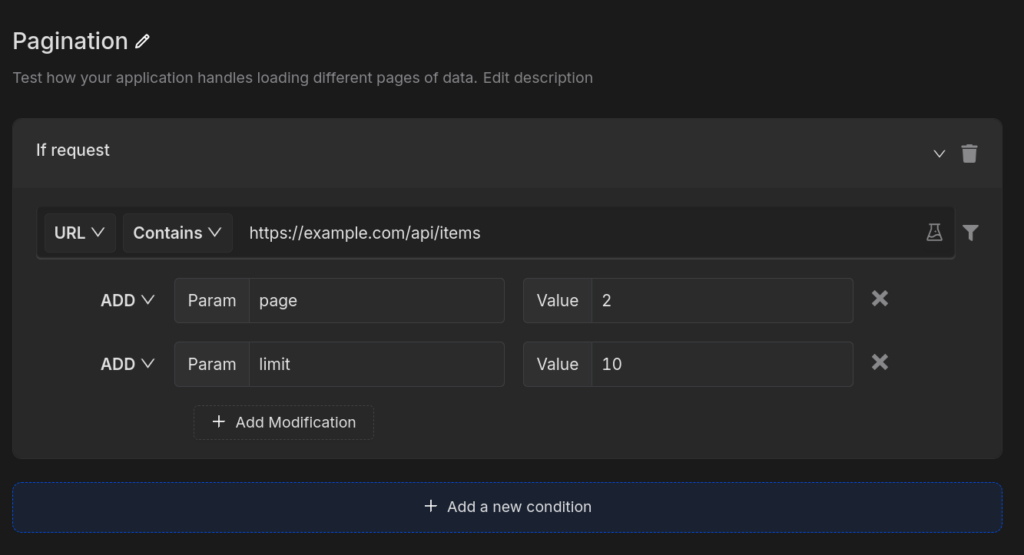
Modifying Query Parameters
Adjust query parameters in your API calls to simulate different scenarios.
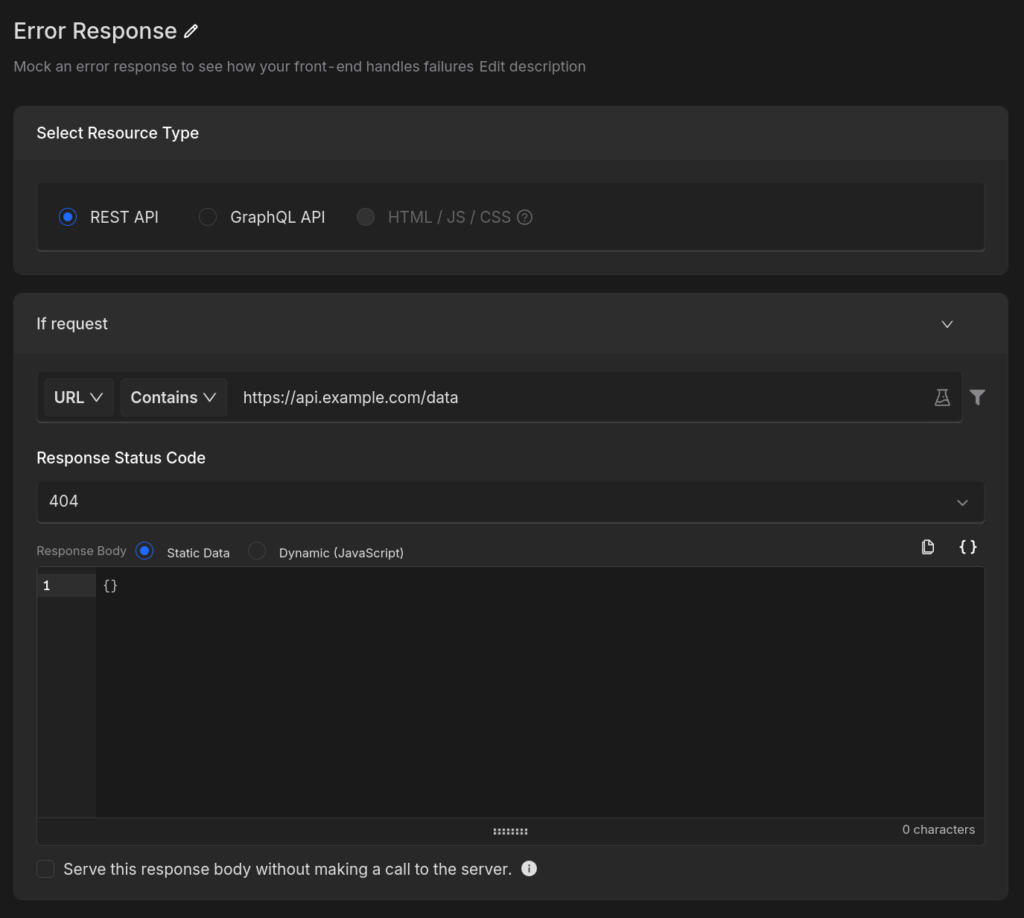
Mocking API Responses
Test how your front-end handles different data by modifying API responses.
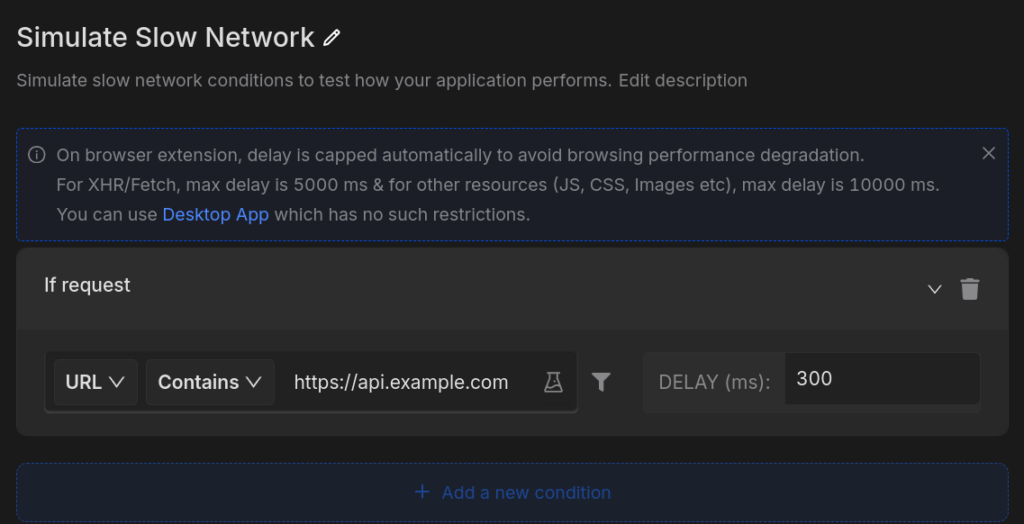
Delaying Network Requests
Simulate slow network conditions to test how your application performs.
Conclusion
Using Requestly to redirect Prebid.js from a staging server on your production site is an efficient and safe way to test changes without modifying your live environment. By following the steps outlined above, you can validate your updates in a real-world setting, ensuring smooth ad operations and a seamless user experience before deploying any changes to production. Happy testing!
Test any API request visually: import a cURL command or build from scratch in Requestly, the API client for developers.
Download →